PurposeUse Escalation Management section to prevent cases from escalating. SupportLogic extracts more than 60 different signals and trends from your case messages to predict escalations and walks you through actions to prevent escalations before they happen. |
SummaryThere are two pages under Escalation Management:
|
Applying Global and Dynamic Filters
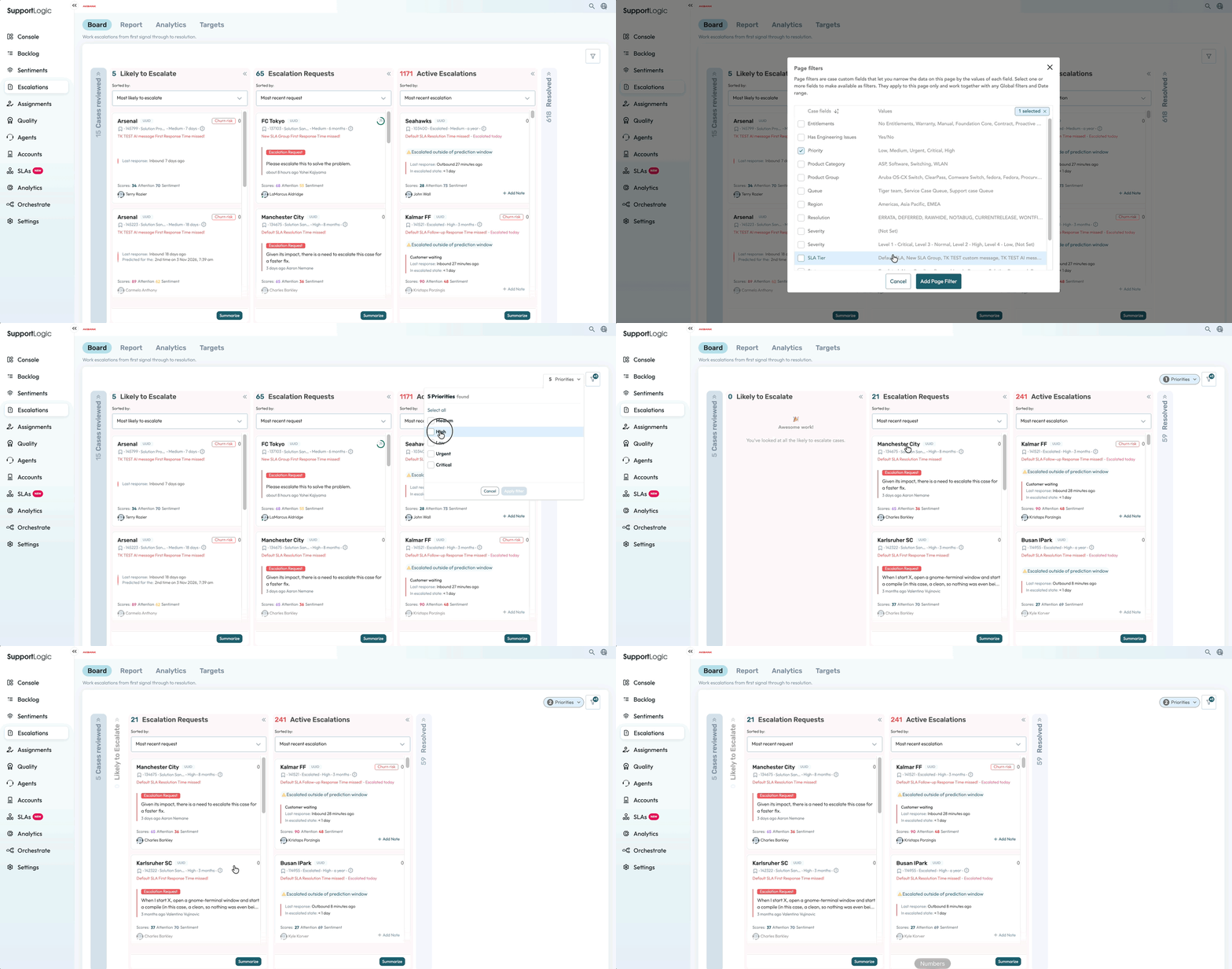
You can leverage your Global Filters and combine them with Dynamic Filters as you can elsewhere in SupportLogic (see Dynamic Filters defined and applied below):
You can also apply any Global Filters you have defined to narrow the list of cases to only those that pertain to your team and/or customers.
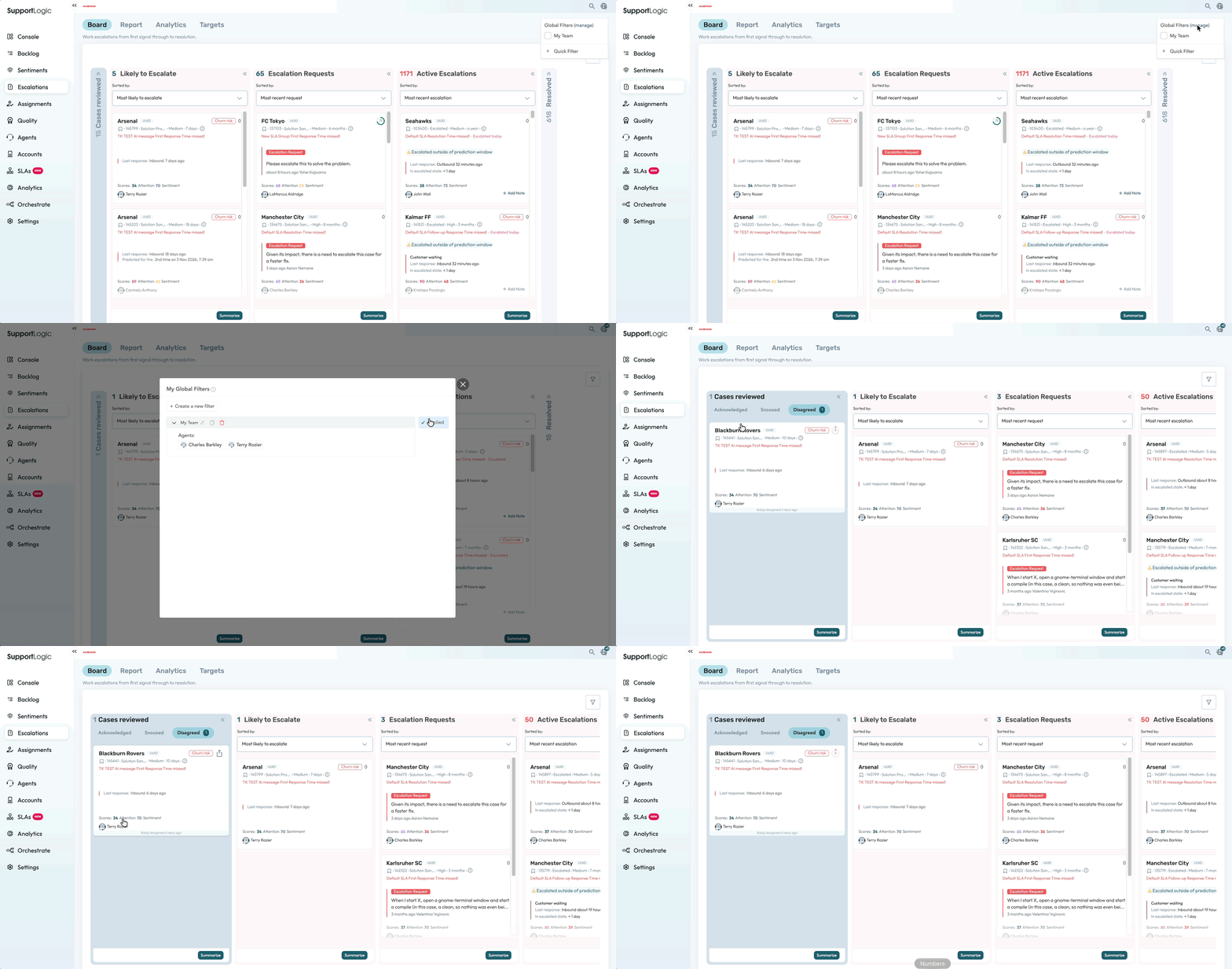
The Cases reviewed column keeps track of all cases that have been acted on and organizes them into three lists:
- Acknowledged - for cases where action was taken to engage with the customer, agent or reassign the case
- Snoozed - where action were delayed for a specified time period
- Disagreed [with] - where a user disagreed with the predicted by SupportLogic
Escalations Review Workflow
While working in the Escalations Board, you will take action on cases, deciding whether to "Acknowledged", "Snooze" for a specific time period or to "Disagree" with the escalation prediction made by the SupportLogic AI.
To complete the Escalations Review Workflow:
- Review cases in the Likely to Escalate column
- Open a case to determine what action you wish to take on
- Start the Escalation review
- Review Key Insights that SupportLogic surfaces as relevant to this case based on the case history, customer interactions and agent interactions
- Take appropriate actions on the case. Some examples are:
- Re-assign the case to another agent
- Share the case with one or more other team members
- Communicate with the customer or agent directly
- Edit case fields
- Add escalation notes, provide coaching to the agent, etc.
- Choose one of three options:
- Acknowledge prediction
- Snooze it for
- Disagree with prediction
- Then Exit the review and move onto the next case
Escalations Report
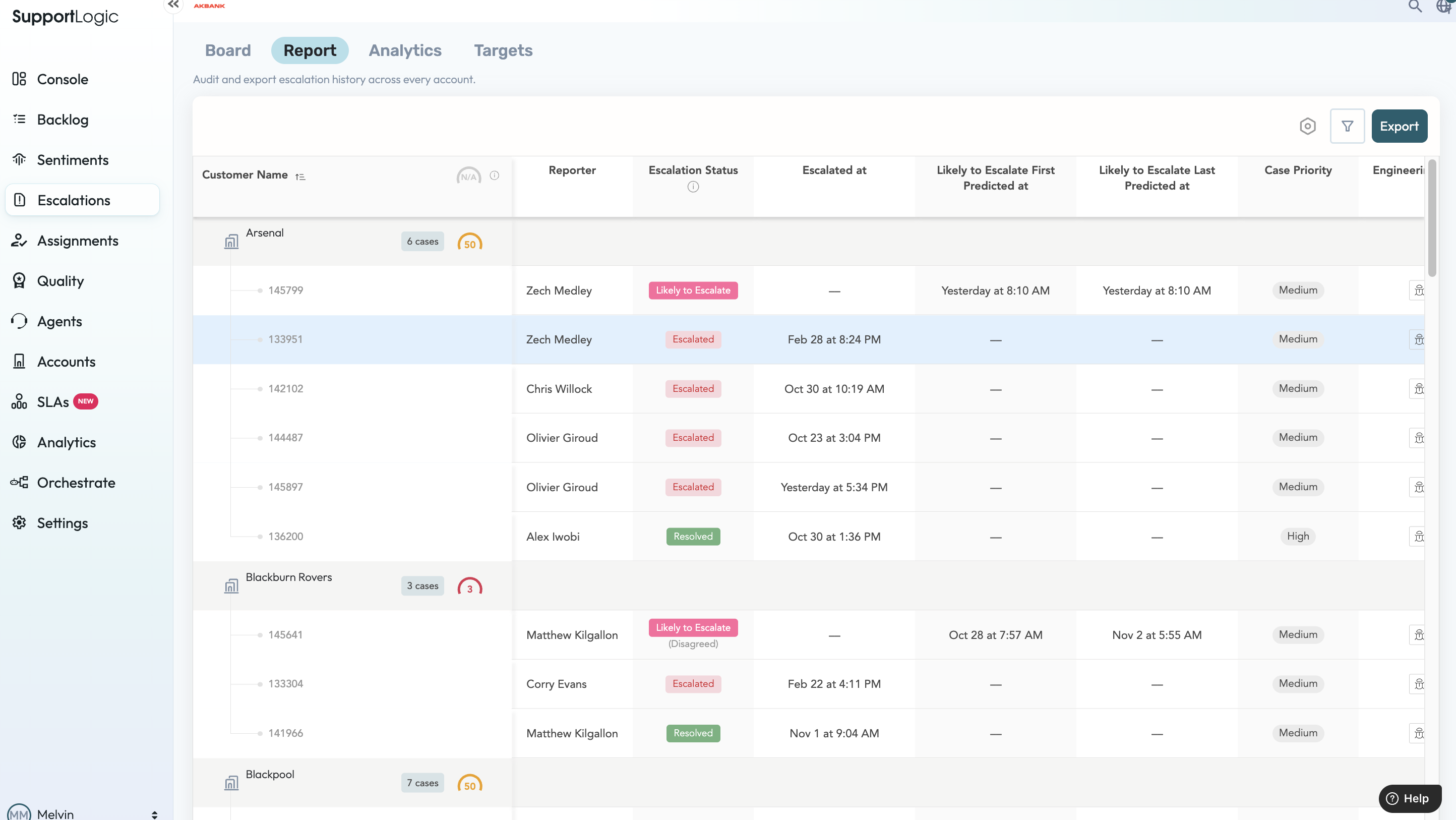
Target case rollup measures that are relevant to manipulate rows of cases with rich metadata, grouped by customer. You can also sort these lists of cases by clicking on the (i) icon just under their title(s).
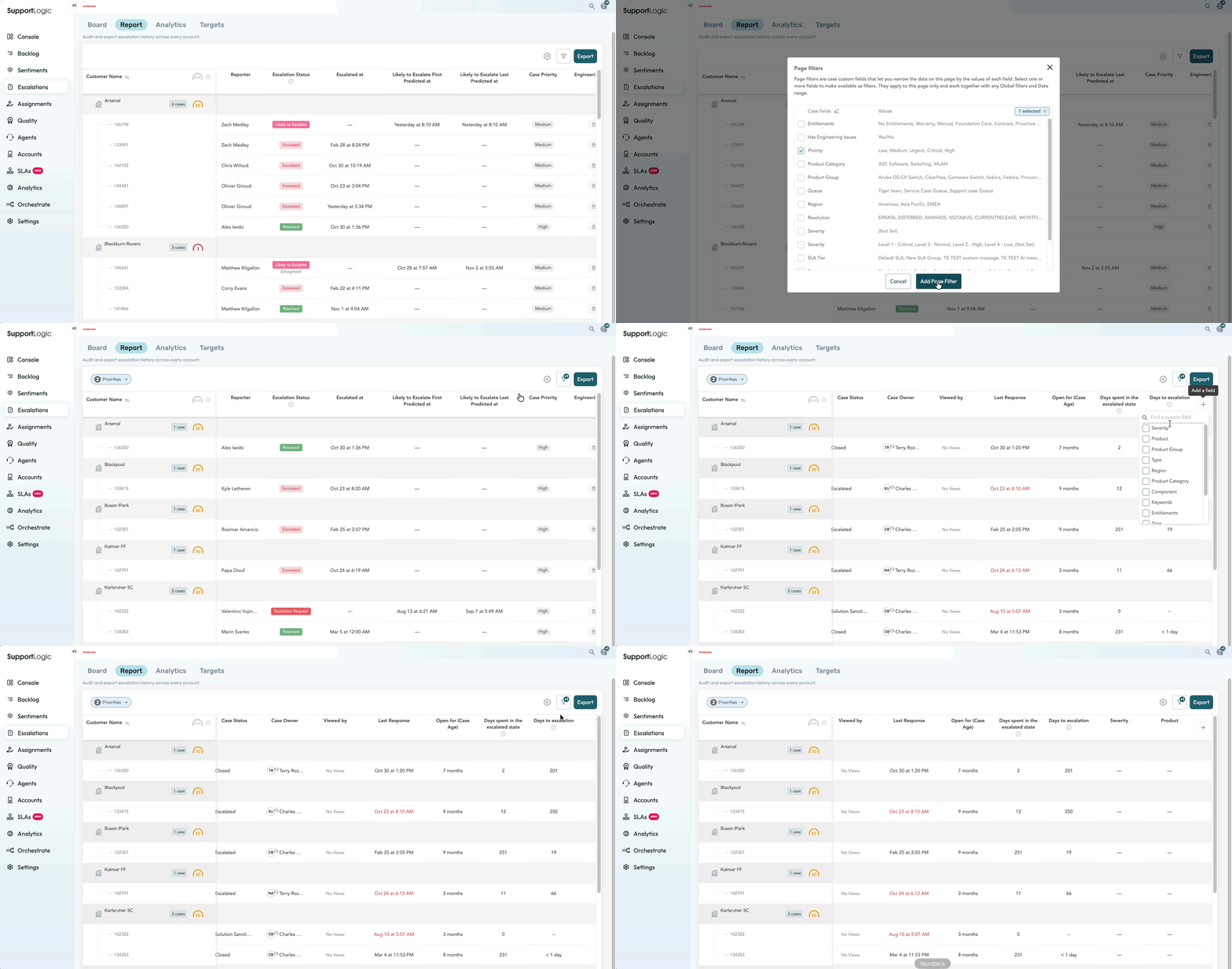
Add Case Fields and Export Escalation Prediction Data
In addition to manipulation of the column arrangement, you can Add a Field to the Escalations Report, including custom case fields, continue to arrange them as needed and Export as CSV file for further analysis (see example below).
Escalations Report Use Cases
Escalations Report provides you with a focused report on how your team or organization is performing on escalations and, more importantly, escalation prevention. By escalating data that include case status, resolution, first prediction to escalate, last prediction to escalate, final escalation status, etc. you can determine how effective your escalation prevention efforts have been using SupportLogic.
Note that any Global, Quick or Dynamic Filters that you have applied in Escalations Report will impact the list of cases exported. To review aggregate data on all cases for a given quarter, for instance, you should first disable all filters and then set your time frame for the data to be exported.
Was this article helpful?
That’s Great!
Thank you for your feedback
Sorry! We couldn't be helpful
Thank you for your feedback
Feedback sent
We appreciate your effort and will try to fix the article