Purpose
Agent Insights helps managers and team leads monitor agent and team performance, understand workload distribution, and track key performance trends.
Users can start with an overview of their favorite agents or search for individual agents, Virtual Teams, and Virtual Orgs to review their performance. They can also navigate directly to an individual agent's profile to explore detailed metrics, workload, and agent evaluations.
Summary
The Agent Insights page provides a centralized view of agent and team performance. You can also use the search functionality to find and review:
Individual Agents
Virtual Teams
Virtual Orgs
Selecting an individual agent takes you to their profile, where you can review their workload, performance statistics, and access their evaluation.
Refer to the GIF below for a walkthrough of Agent Insights navigation and the available options.
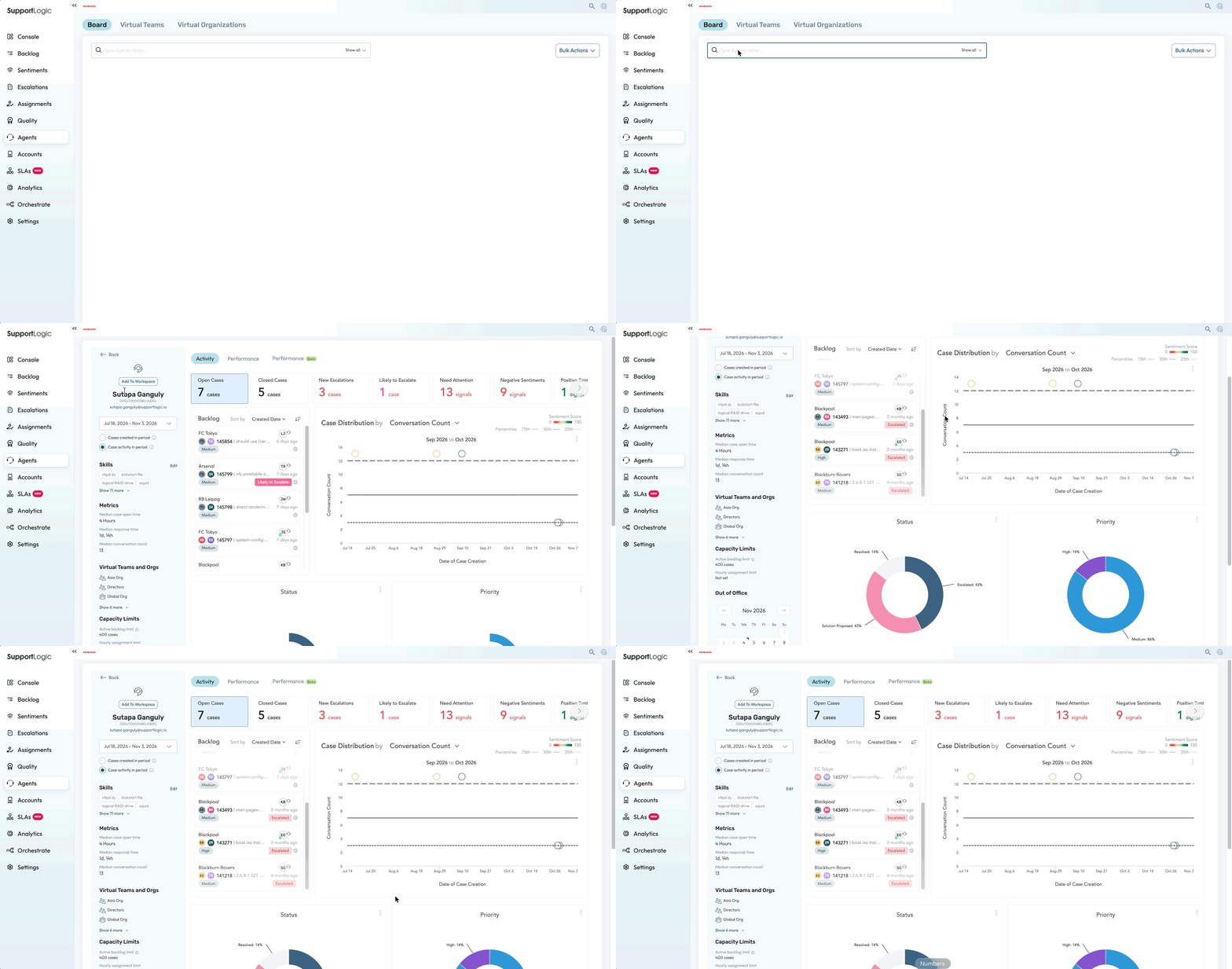
Agent Insights – Navigation
To access Agent Insights:
Navigate to Agents from the left-hand navigation menu.
The Agent Insights page displays your favorite agents in a table view.
Use the search option to find a specific agent, Virtual Team, or Virtual Org.
Select the relevant agent or team to access their performance insights.
For an individual agent, open their profile to review detailed workload information, performance metrics, and agent evaluation.
Agent Profile
The individual agent profile provides a detailed overview of an agent's performance and workload.
Depending on the available configuration, you can review:
Agent workload and assigned cases.
Key performance statistics.
Case handling and activity trends.
Agent performance insights.
Agent evaluation details.
This view helps managers understand individual agent performance and identify areas that may require further attention.
Agent Board
You can also access the Agent Board from the Backlog section of the left-hand navigation menu.
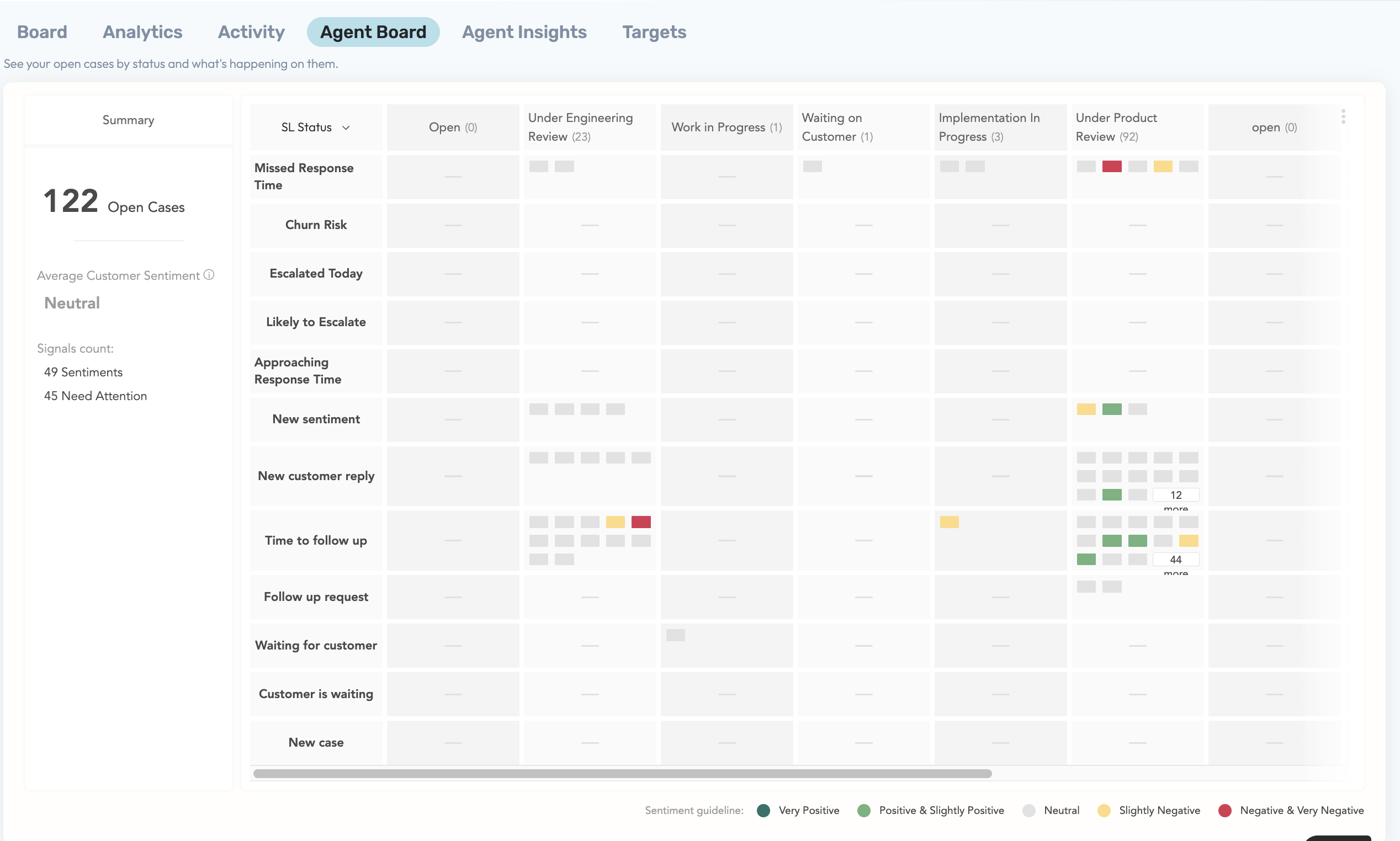
The Agent Board provides an overall view of open cases and their current status across agents, allowing managers to understand workload distribution and monitor case assignments from a centralized view.
Use the Agent Board to:
Review open cases across agents.
Understand the current status of cases.
Monitor agent workloads.
Identify how cases are distributed across the team.
Refer to the screenshot below for an overview of the Agent Board.
Additional Resources
For more information about Virtual Teams and Virtual Orgs, refer to the following knowledge base article:
Was this article helpful?
That’s Great!
Thank you for your feedback
Sorry! We couldn't be helpful
Thank you for your feedback
Feedback sent
We appreciate your effort and will try to fix the article