PurposeThe Account Hub provides a centralized view of customer accounts, individual reporters, virtual accounts, and virtual groups. It helps users understand customer activity, review support-related metrics, and gain insights into case trends, escalations, sentiments, and other key information. |
Summary
Think of the Account Hub as a consolidated view of an individual customer or account. You can search for an Individual Reporter, a specific Customer Account, a Virtual Account, or a Virtual Group to access detailed insights and support-related information.
The information displayed will vary depending on the type of account or entity selected.
Navigating to the Account Hub
Follow these steps to access the Account Hub:
Navigate to Accounts from the left-hand navigation menu.
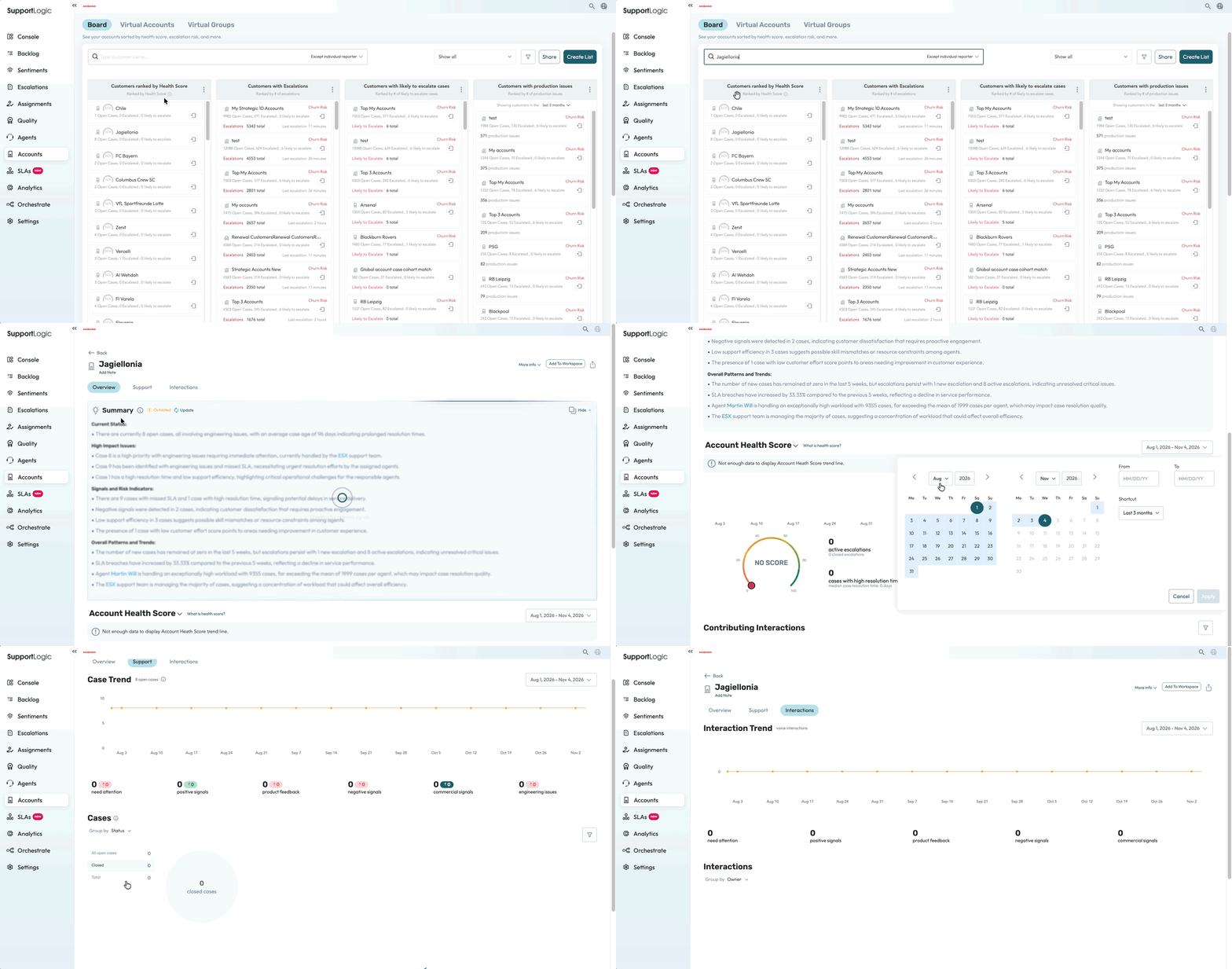
By default, you will land on the Board tab, where customer accounts are displayed across different sections.
At the top of the page, locate the search bar.
Enter the customer account name or individual reporter you want to search for.
Use the search scope dropdown to refine your search. By default, the search excludes individual reporters.
Select the relevant account or individual reporter from the search results.
Once selected, you will be redirected to the corresponding Account Hub page, where you can access a consolidated overview of account details, case activity, and support-related insights.
Refer to the Gif below for the navigation and search options available on the Accounts page.
Account Hub – Insights Layout
The Account Hub provides a consistent layout across different account types. The primary components include:
Date Range Selector: Filter the displayed information based on the selected time period.
Configurable Case List: Review customer cases and access relevant case details.
Interactive Charts: Explore graphical representations of customer support data and trends.
Insight Tabs: Switch between different categories of information, including escalations, sentiments, feature requests, and other case-related insights.
Dynamic Chart Updates: Charts and metrics update based on the selected tab, allowing you to explore specific areas of customer activity.
Note: If you are looking for comprehensive information about a particular account, make sure to review your Global Filters, as they may restrict the data displayed based on your configuration.
Types of Insights
The information available in the Account Hub depends on the type of entity selected.
1. Individual Customer Account
Provides an overview of the customer's support activity, including:
Total number of cases.
Escalated cases.
Cases requiring attention.
Positive and negative sentiment trends.
Feature requests.
Types of issues encountered.
Customer comments added by users.
Graphical breakdown of cases by resolution.
2. Individual Reporter
Provides insights into the support activity associated with a specific reporter, including:
Total number of cases submitted by the reporter.
Escalated cases.
Cases requiring attention.
Positive and negative sentiment trends.
Feature requests and issue categories.
How long the reporter has been active in the system.
Notes added for Agents and Engineers to reference while working on the reporter's cases.
Graphical breakdown of cases by resolution.
Note: Expand a case from the center column to view the associated customer account for that individual reporter.
3. Virtual Account
Provides a consolidated overview of support activity across the accounts grouped under a Virtual Account, including:
Total number of cases.
Escalations and cases requiring attention.
Positive and negative sentiment trends.
Feature requests.
Types of issues encountered.
Customer comments.
Graphical breakdown of cases by resolution.
4. Virtual Group
Provides a consolidated view of support-related insights across the accounts included in a Virtual Group. This includes case volume, escalations, sentiment trends, feature requests, issue categories, and case resolution metrics.
Was this article helpful?
That’s Great!
Thank you for your feedback
Sorry! We couldn't be helpful
Thank you for your feedback
Feedback sent
We appreciate your effort and will try to fix the article