In SupportLogic’s Support Hub, team members can collaborate, communicate internally(or externally), and provide contextual feedback to agents directly within the case view:
Managers and leads can highlight specific agent comments on the case timeline to leave private, threaded 1-on-1 coaching notes.
Note: Please ensure you have appropriate permissions to utilise these feature.
Internal Note:
Open the Case: In SupportLogic, navigate to Support Hub and select the case you wish to update.
Locate the Response Area: Scroll to the bottom of the case view to find the response module.
Select Your Tab:
Add a Case Note: To post an internal note visible only to your internal team.
Case Comments:
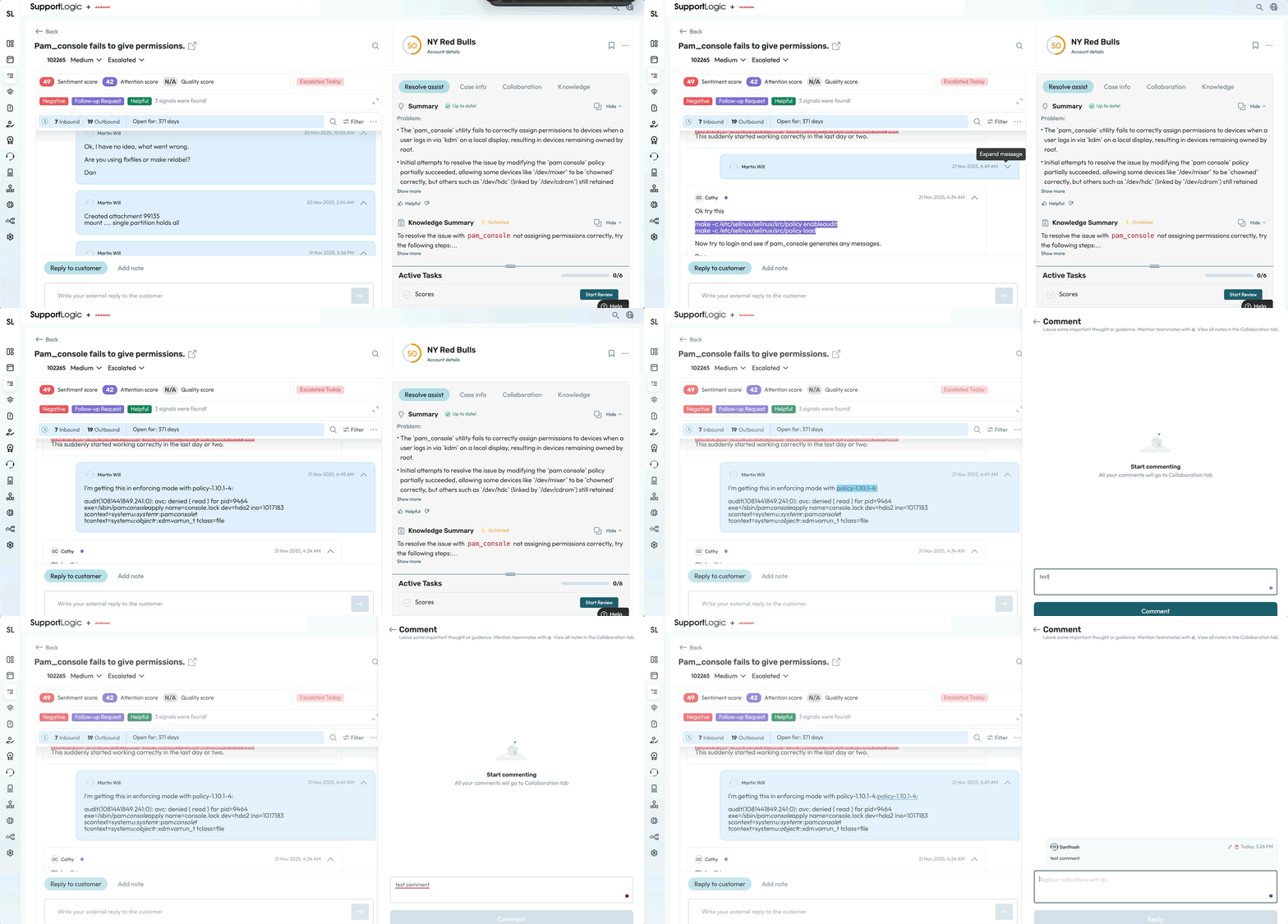
1. Open the Case: In SupportLogic, navigate to Support Hub and select the case you wish to add comment to.
2. Highlight a text or line on the case comment and click on the comment icon to add comment.
3. Comments added will be visible in the Collaboration tab, on the left.
Check below GIF on adding comments to the case.
Coaching Feedback:
Provide precise, contextual feedback on specific customer or agent interactions without leaving the case stream:
Locate the Interaction: Navigate the case Timeline to the specific agent comment you want to coach on.
Highlight the Text: Click and drag your cursor over the specific sentence or phrase to trigger the coaching tooltip.
Select "Add Coaching Note": Click the coaching prompt that appears.
Choose Visibility & Recipients: Select one or multiple assigned agents.
Note: Coaching notes remain private and are only visible to the managers and the selected agent(s).
Draft & Save: Enter your feedback and click Save.
Threaded Discussions:
All coaching notes are consolidated in the Collaboration panel (under a dedicated Coaching section).
Managers and agents can view the notes, reply via threads, edit, or delete feedback to maintain an ongoing dialogue.
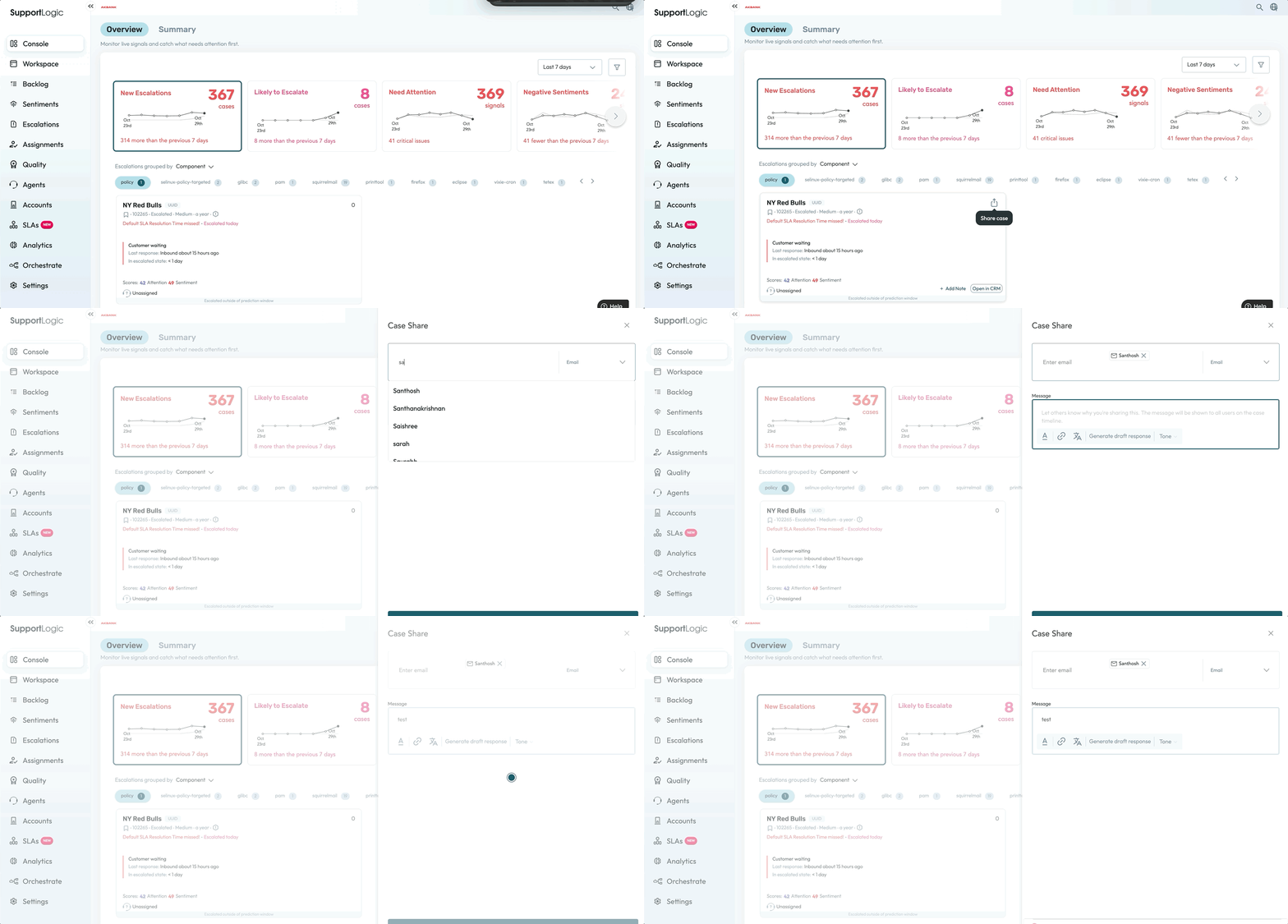
In SupportLogic, you can share cases with the agents through Slack, MS Teams, and email. To share a case, please follow the below steps:
- Hover over the case from the console page and the share icon will be visible.
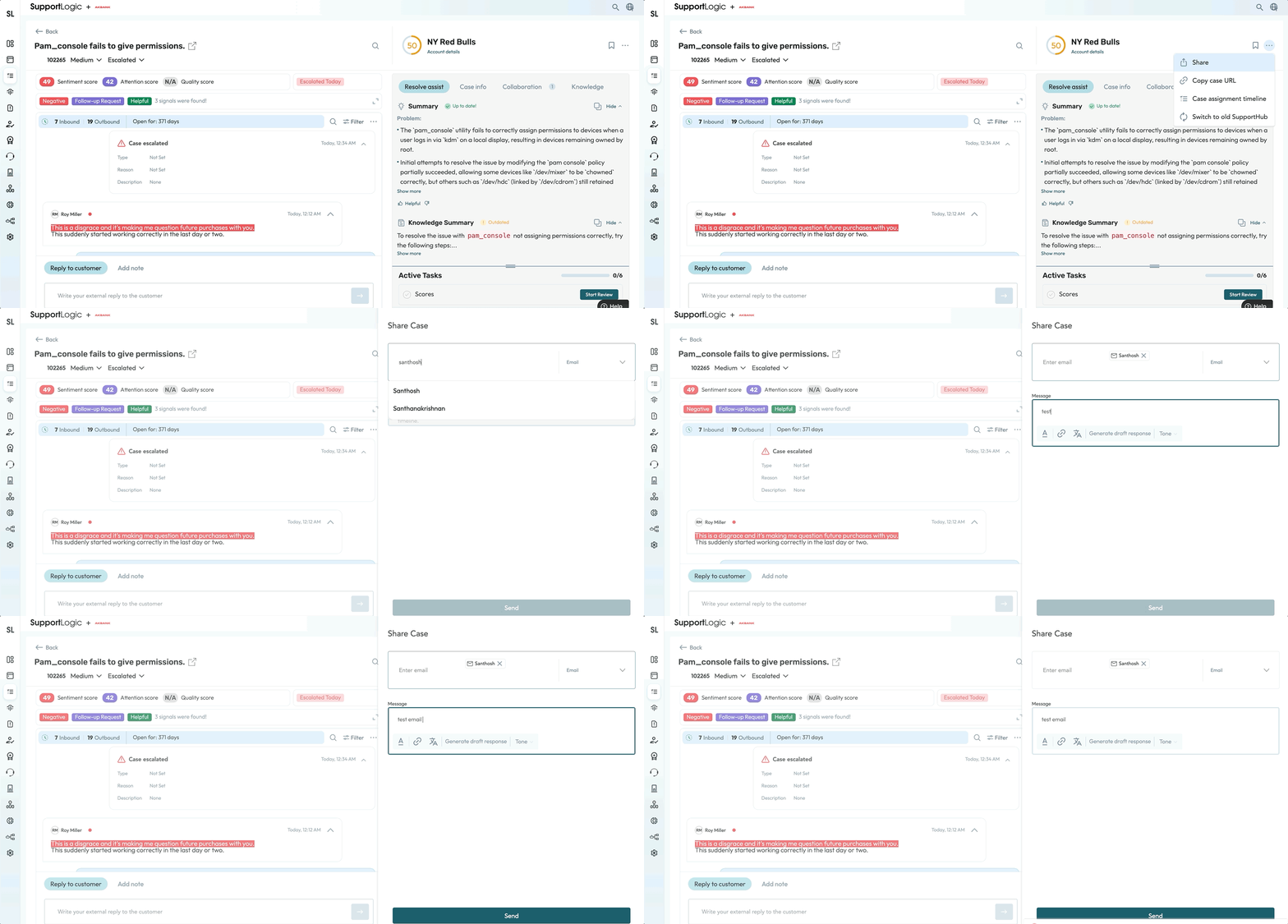
- Click on the share icon and enter the Slack username/MS Teams username/email address of the agent or manager.
- You can add a note to let know the reason for sharing this case.
- You can also share the case by opening a particular case and clicking on the share icon.
Check the below GIF on sharing the case
Was this article helpful?
That’s Great!
Thank you for your feedback
Sorry! We couldn't be helpful
Thank you for your feedback
Feedback sent
We appreciate your effort and will try to fix the article