PurposeThe purpose of this document is to explain the possible reasons and resolution steps for cases where an agent's name does not appear in the Elevate SX UI, even though their case data is available. |
SummaryIf a case is visible in Elevate SX but shows “No Agent” as the case owner, it could indicate that the associated agent is currently disabled in the system. In such scenarios, a few quick validations can help resolve the issue and restore visibility. 1. Navigate to User Management
2. Enable Disabled Users Filter
|
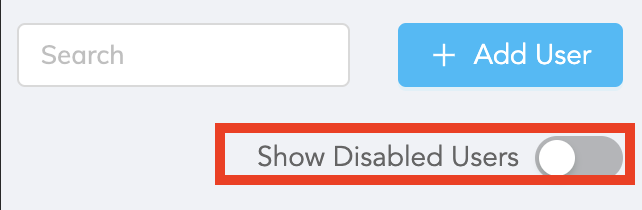
3. Search for the Agent
Use the search bar to find the specific agent by name.
4. Enable the Agent
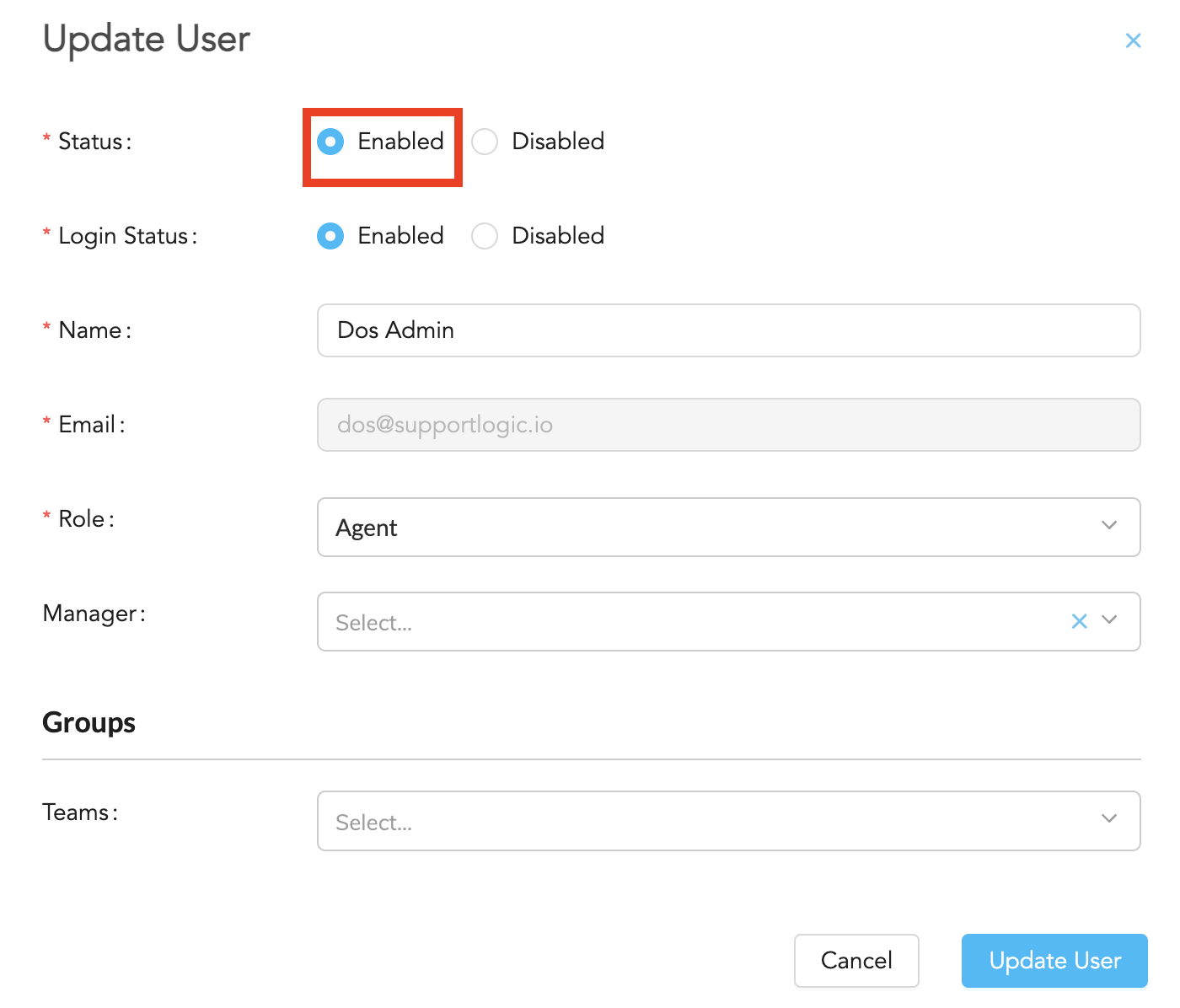
Click on the agent's name to open the details popup.
In the popup window, locate the Status field.
Change the status to Enabled to reactivate the agent.
Once enabled, the agent will begin to appear in the Elevate SX UI, and their name will be correctly displayed as the case owner for all relevant cases.
Please refer to the below screenshot for your reference.
Was this article helpful?
That’s Great!
Thank you for your feedback
Sorry! We couldn't be helpful
Thank you for your feedback
Feedback sent
We appreciate your effort and will try to fix the article