Create OOO for bulk users

Overview:

This article explains how to create an Out of Office (OOO) entry for a specific virtual team in SupportLogic and outlines current limitations to be aware of when using this feature.


Steps to Create a Virtual Team OOO Entry


  1. Go to Agent Insights

    Navigate to the Agent Insights tab from the main menu.

  2. Access the OOO Settings

    In the Agent Insights view, click on the OOO option located at the top-right corner.


  3. Create a New OOO Entry

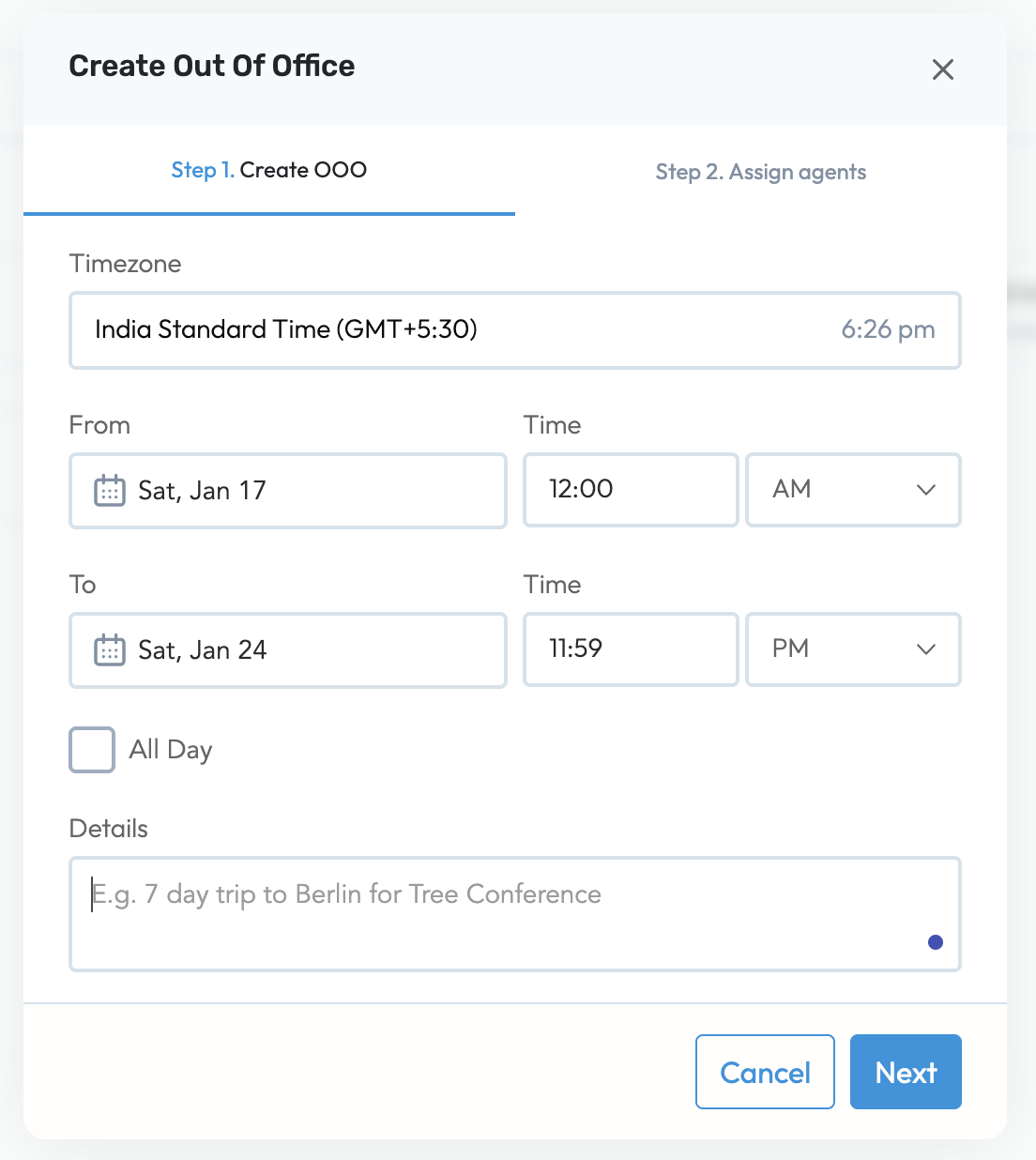
    • Click on “Add OOO” or the “+” icon to create a new entry.

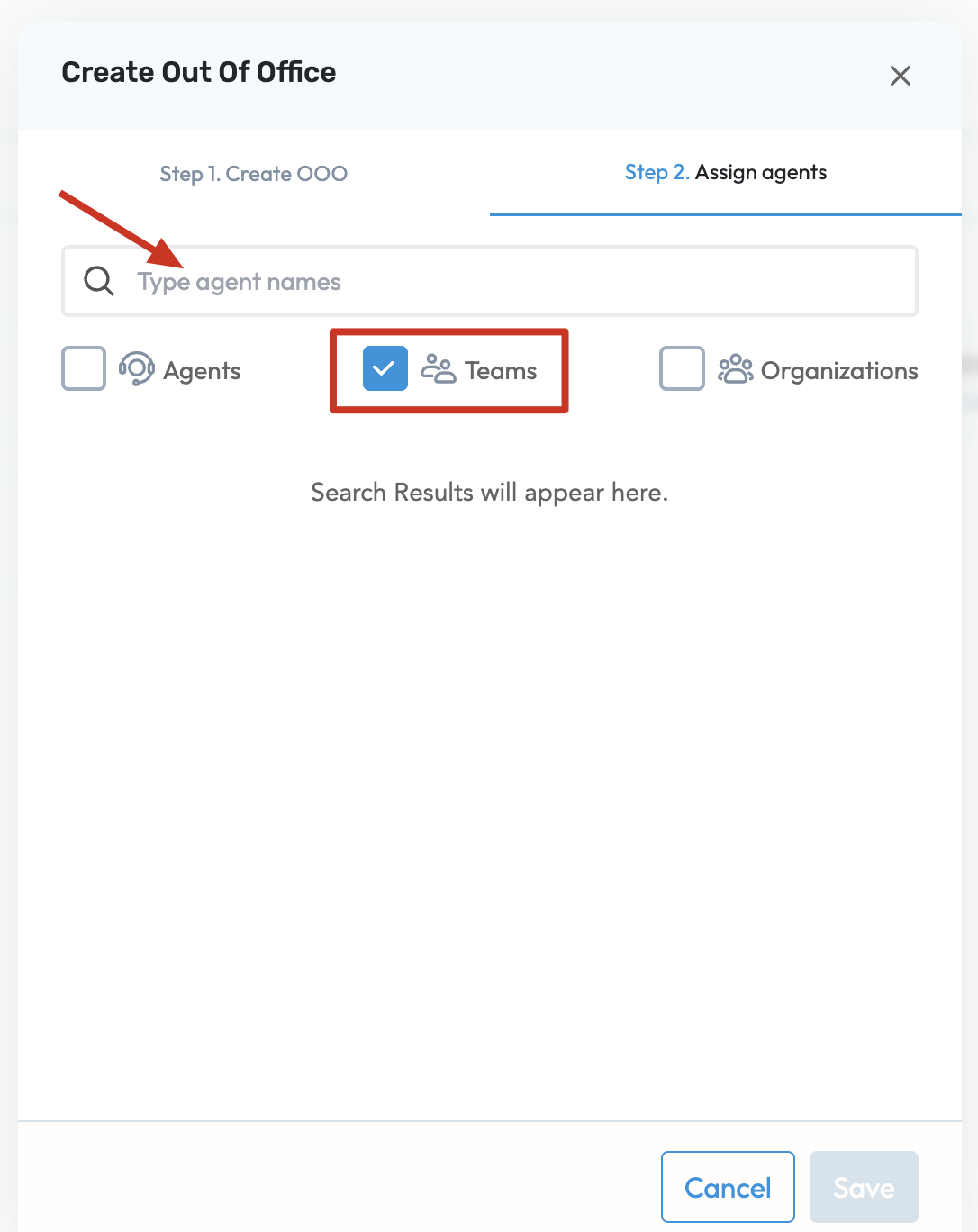
    • From the Team dropdown, select the virtual team you want to mark as unavailable.

    • Choose the specific date(s) when the team should be marked OOO.

    • (Optional) Add a description or reason for the OOO entry.


  4. Save the Entry
    Click Save to apply the OOO for the selected team and date.


Important Notes & Limitations

  • OOO Entries Cannot Be Edited Once Created

    After saving, an OOO entry cannot be modified. If there is an error, you will need to delete the entry and create a new one.

  • Timezone Discrepancies May Occur

    OOO entries are saved based on the timezone of the user who creates them. This may result in discrepancies for teams across different time zones. Please ensure the correct timezone is considered before setting the OOO.

  • Virtual Team Visibility

    Ensure the virtual team is already configured in your environment. Only existing virtual teams will appear in the dropdown.


Was this article helpful?

That’s Great!

Thank you for your feedback

Sorry! We couldn't be helpful

Thank you for your feedback

Let us know how can we improve this article!

Select at least one of the reasons
CAPTCHA verification is required.

Feedback sent

We appreciate your effort and will try to fix the article