Overview
This article explains how to update a CRM case status field/value in SupportLogic to ensure new or modified statuses are reflected correctly in the UI.
Prerequisites
- Access to Control Center → Settings → Fields in SupportLogic
- Proper mapping of CRM status fields to SupportLogic
Steps to Update Case Status
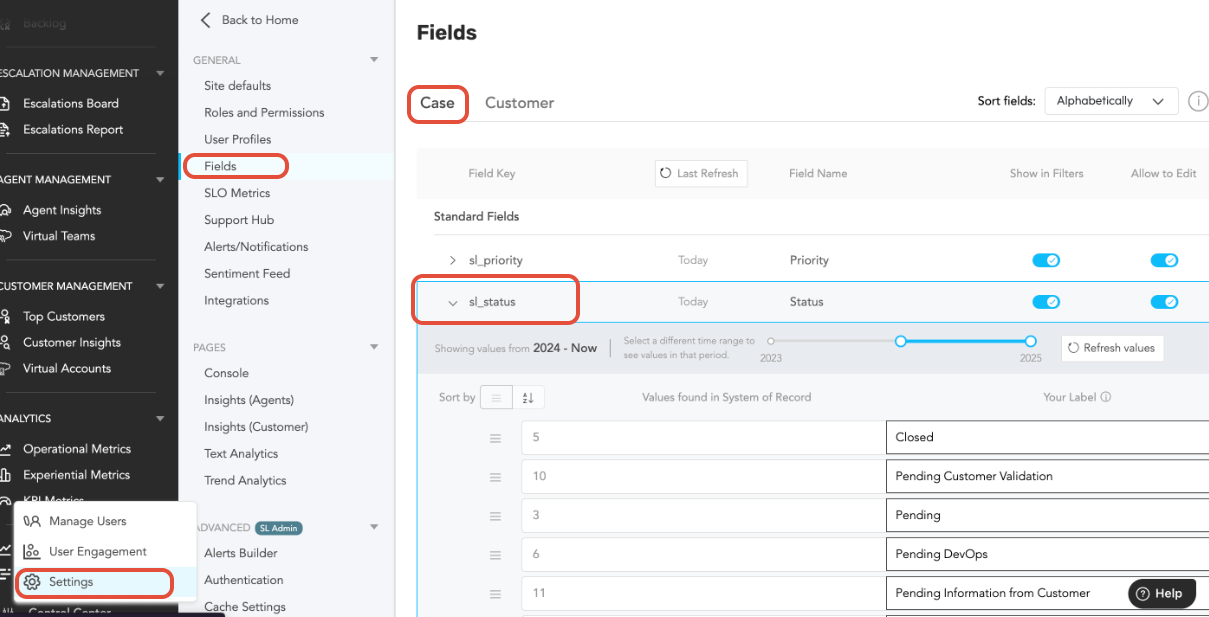
- Navigate to Fields
Go to Control Center → Settings → Fields.
- Locate Case Status Field
- Under sl_status, all case statuses are listed with their respective IDs and values.
- Update Status Value
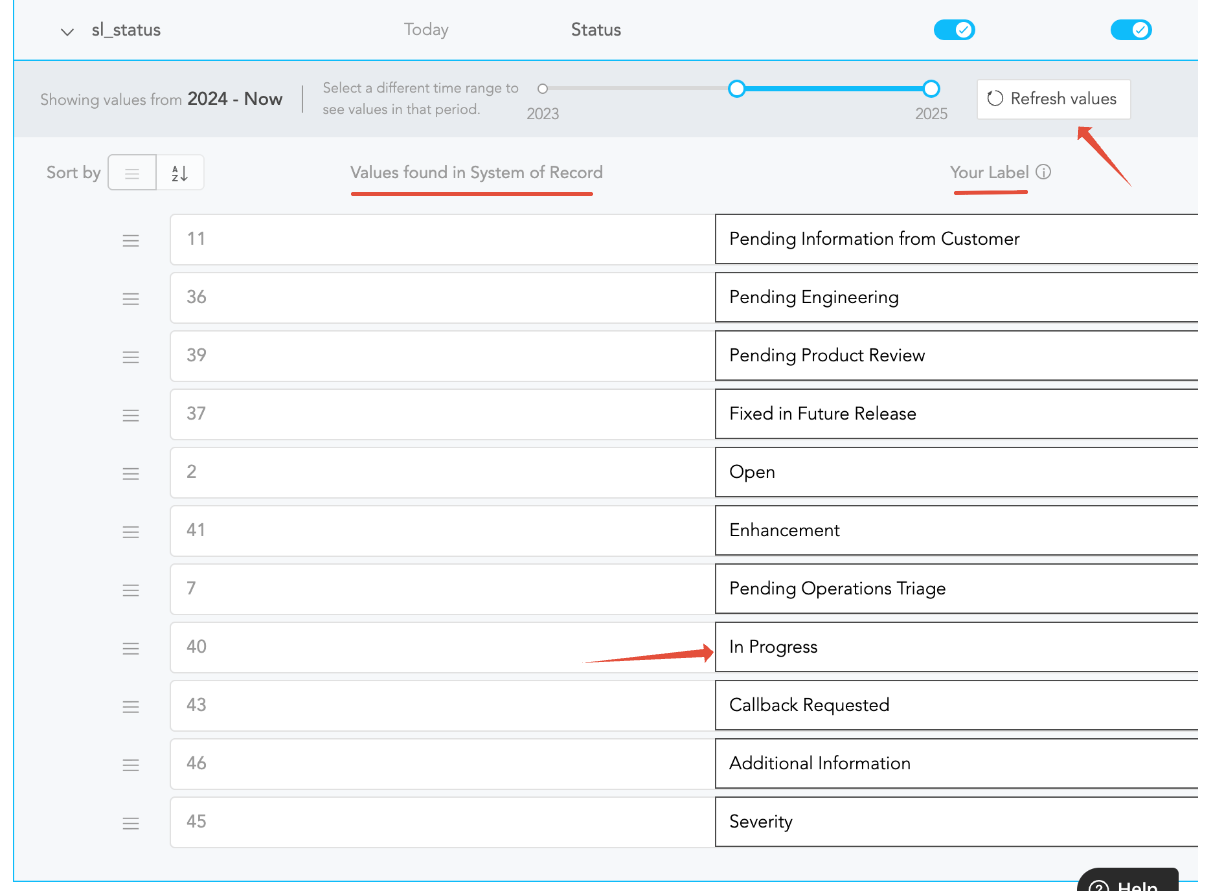
- Identify the Status ID that needs updating (e.g., 43).
- When a case with this status is active, update the value in the sl_status field section.
- Press Enter to save the change.
- Verify Update
- Click Refresh Values to ensure the updated status appears in the UI.
- Example
- Status Name - Callback Requested
- Status ID - 43
- Action - Update in sl_status and press Enter
Important Notes
- If CRM fields are mapped correctly, new statuses should appear automatically in sl_status.
- If the status does not appear:
- Verify the CRM status fields are correctly configured.
- Contact SupportLogic Support if the issue persists.
Was this article helpful?
That’s Great!
Thank you for your feedback
Sorry! We couldn't be helpful
Thank you for your feedback
Feedback sent
We appreciate your effort and will try to fix the article