Purpose
This article explains how to assign users access to cases through a specific virtual team in SupportLogic. It also covers how virtual teams and virtual orgs work together and how user access is managed through role configuration.
Description
Based on the current design, all public virtual orgs configured in CoreSX are automatically replicated in ESX. A virtual org can consist of multiple virtual teams combined under one structure.
When updating a user in User Management → User (specific user), you can assign access based on custom configurations using roles.
Steps to Assign Virtual Team Access
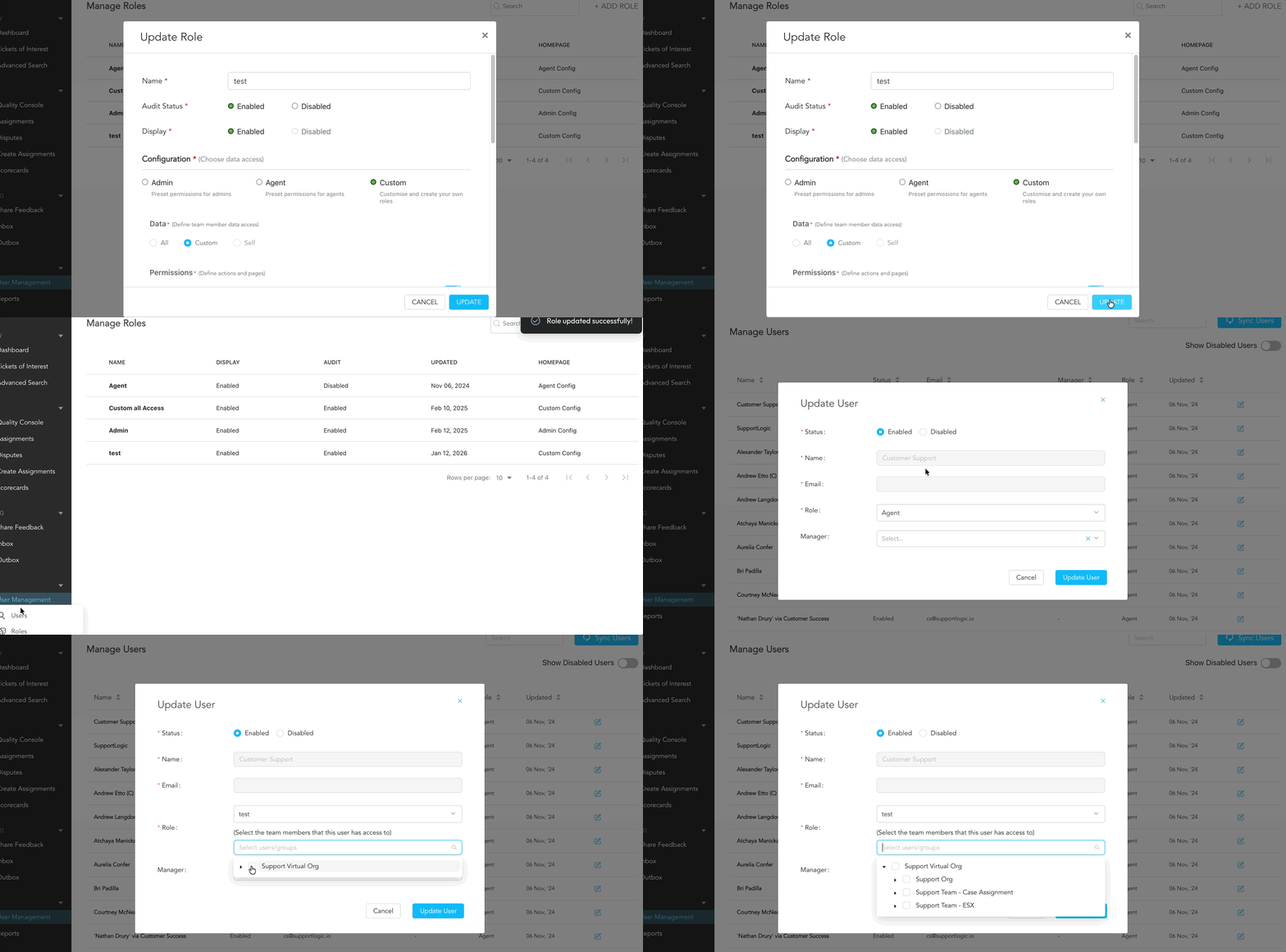
Navigate to User Management → Users and select the user you want to update.
Under Role, choose a role configured based on custom configuration.
While creating a role, ensure it’s set up as a Custom Role Configuration, allowing access control at the virtual org or virtual team level.
Once the custom role is selected, an additional option will appear to select the Virtual Org.
Click the dropdown under Virtual Org to view the list of Virtual Teams included under that Org.
Select the appropriate Virtual Team.
This ensures the user gains access only to cases associated with that specific virtual team.
Please refer to the below GIF for reference :
Note: The virtual team must be part of one of the existing virtual orgs. Only teams included as a subset of a virtual org will appear in the dropdown list.
Was this article helpful?
That’s Great!
Thank you for your feedback
Sorry! We couldn't be helpful
Thank you for your feedback
Feedback sent
We appreciate your effort and will try to fix the article