Introduction:
In certain cases, a user may appear in Core SX but not in Elevate SX, even under the Disabled Users list. This article provides the steps to verify, restore, and re-enable such user accounts to ensure consistent access and alignment across both platforms.
Steps to Resolve:
Verify User Availability:
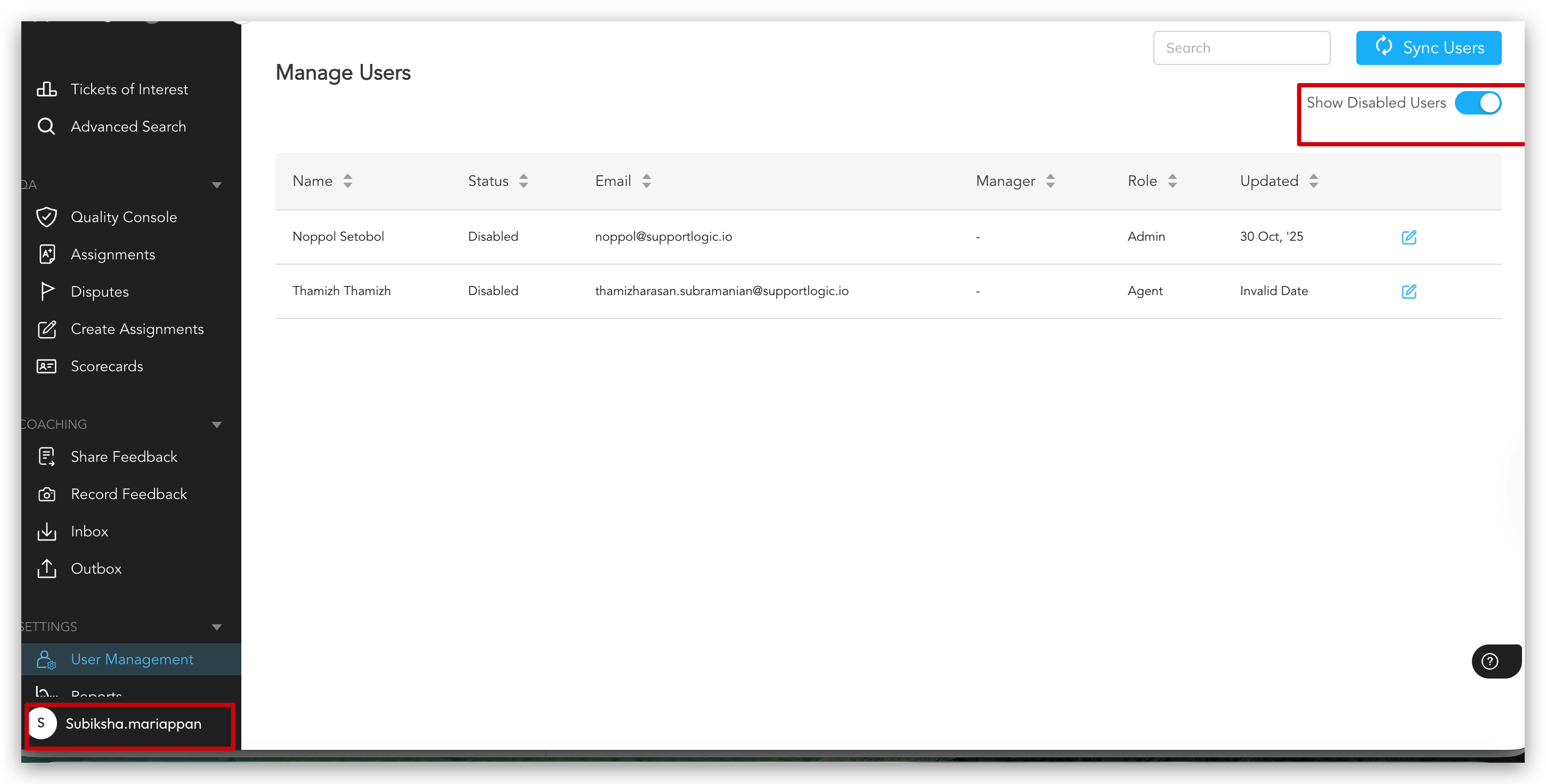
Check if the user is missing from Elevate SX, including the Disabled Users list.
Confirm that the user exists in Core SX in the Manage Users page and check if they are available in Agents Insights page.
Create a CRM Ticket:
If the user is not found in Elevate SX but is available in Core SX, create a ticket in CRM for the missing user.
Include relevant details such as username, email, and associated role.
Wait for System Sync:
Allow 24 hours for the system synchronization process to complete.
Recheck Elevate SX:
After 24 hours, check the Disabled Users list in Elevate SX again to confirm if the user appears.
Re-enable and Configure Access:
Once the user appears in Elevate SX; Enable the user account.
Add the appropriate profile based on the user’s access level and permissions.
Was this article helpful?
That’s Great!
Thank you for your feedback
Sorry! We couldn't be helpful
Thank you for your feedback
Feedback sent
We appreciate your effort and will try to fix the article