Overview
If you’re unable to update or manage alerts in Slack from SupportLogic, it’s likely because your Slack user account is not authorized to make configuration changes to the SupportLogic app in your Slack workspace.
Please note: The authorization to manage or update alerts in Slack must come from your organization’s Slack workspace, not from SupportLogic.
Why did this Happen?
Only Slack workspace admins or users who originally authorized the SupportLogic app can configure or update alert settings. If your account isn’t listed as an authorized member, you won’t be able to make changes to Slack alerts or integration settings.
Steps to Check Your Authorization
Open Slack and go to your profile.
Select Account Settings – this will open your workspace settings in your web browser.
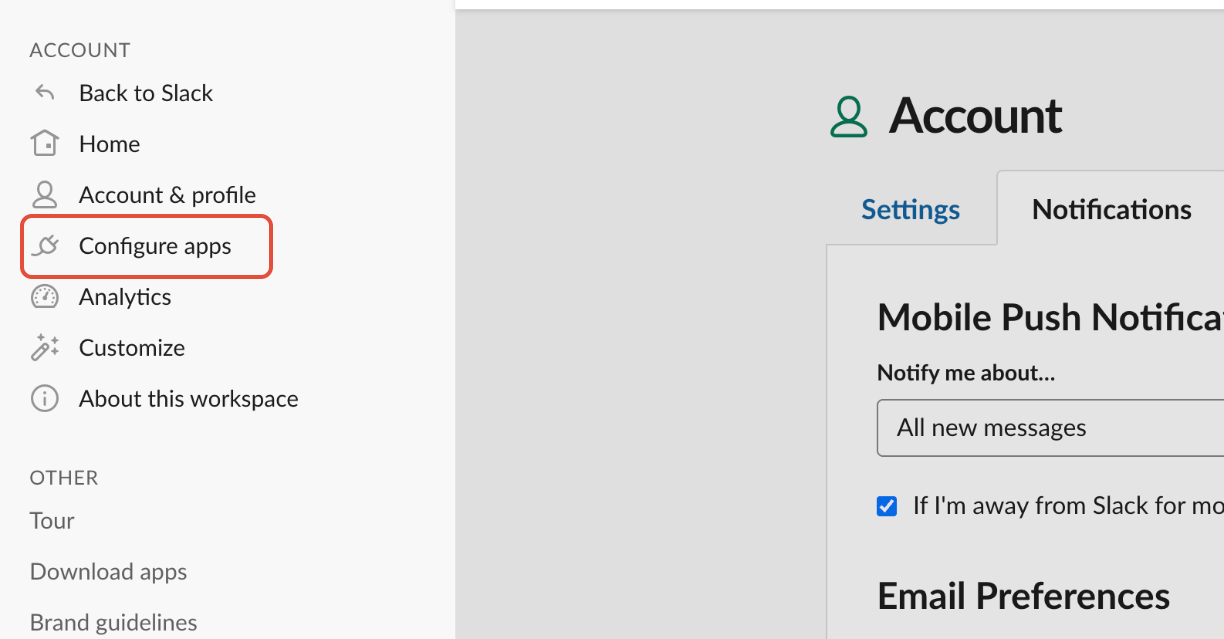
In the browser, select Configure Apps.
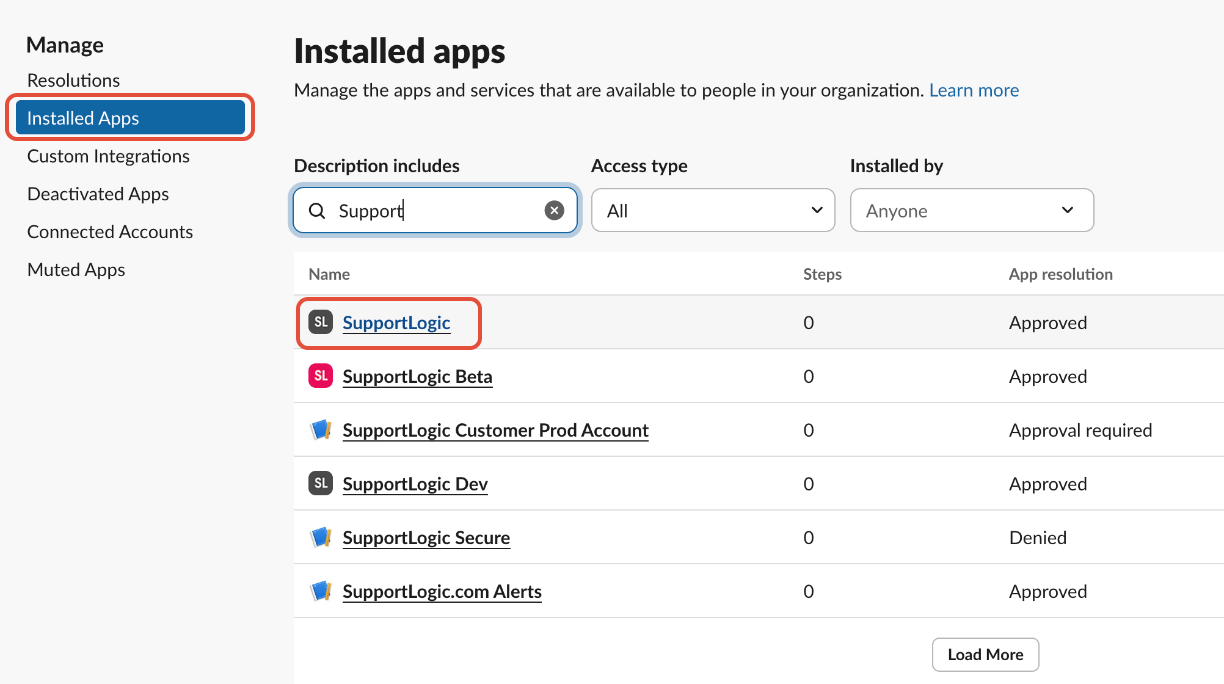
Under Installed Apps, find and click on SupportLogic.
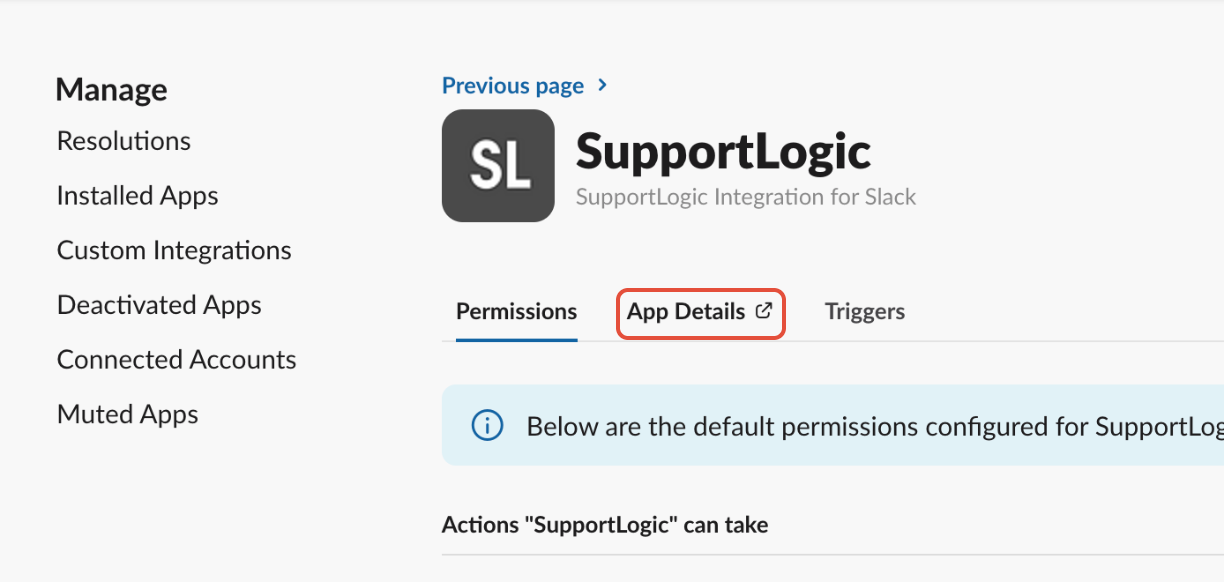
Navigate to App Details → Configuration.
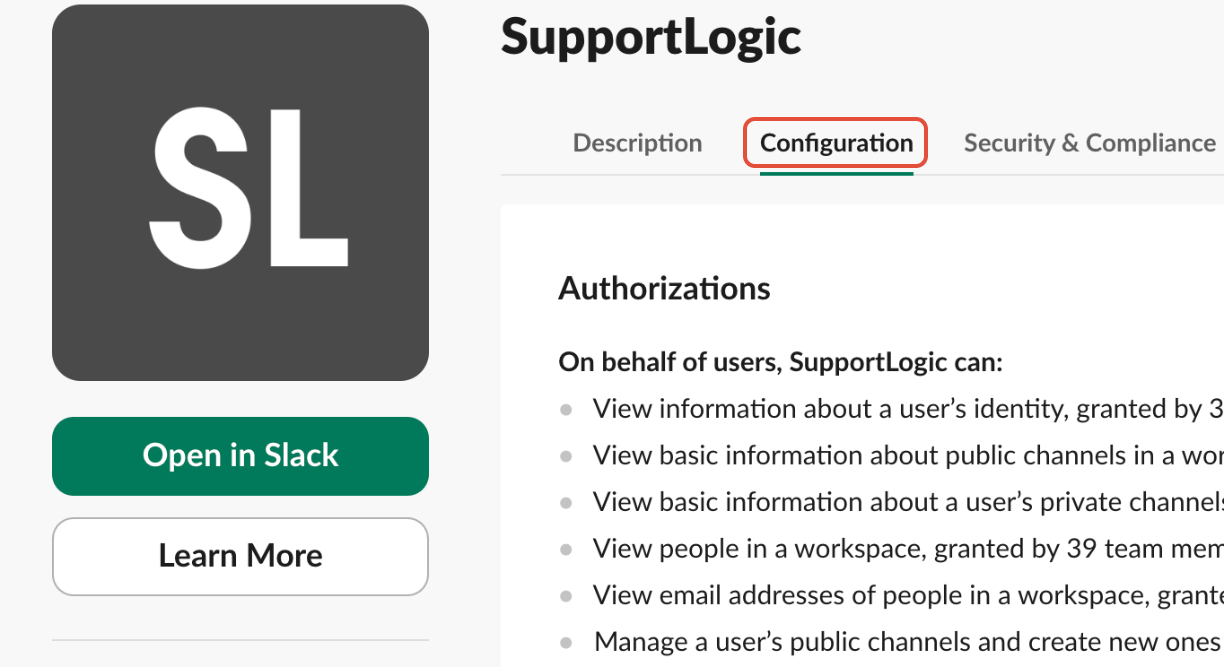
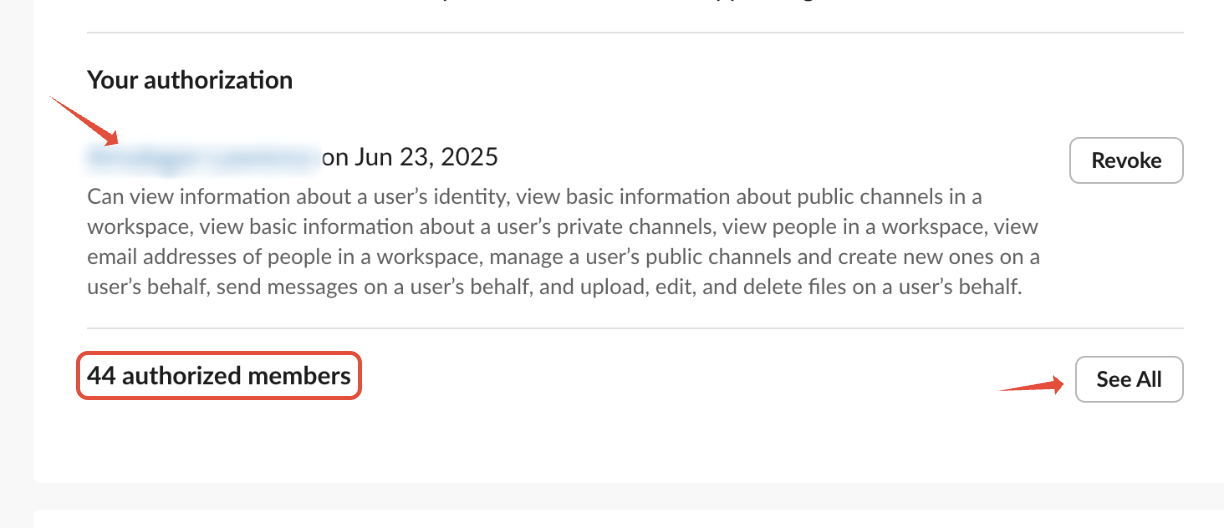
Scroll down to view the list of Authorized Members.
If your name is not listed, you don’t currently have authorization to update or manage alerts.
How to Resolve
If you’re not listed as an authorized member:
Contact your Slack Workspace Admin.
Request them to either:
Reauthorize the SupportLogic app, or
Add you as an authorized member.
To Integrate the SupportLogic app with Slack refer to the article: Slack integration
Once this is completed, you’ll be able to update and manage alerts in Slack as expected.
Additional Notes
The Slack integration on SupportLogic’s side remains functional — authorization must be handled within your organization’s Slack workspace.
If your Slack admin has already reauthorized the app and you still face issues, please contact SupportLogic Support for further assistance.
Was this article helpful?
That’s Great!
Thank you for your feedback
Sorry! We couldn't be helpful
Thank you for your feedback
Feedback sent
We appreciate your effort and will try to fix the article