Purpose
This KB explains how to see which Virtual Teams, Virtual Orgs, and Assignment Queues an active/ Inactive agent is associated with.
Steps
1. Open Agent Insights
Go to the Agent Insights page in SupportLogic.
2. Open the Agent Profile
Search for the agent and click their name to open the profile.
3. View Virtual Teams and Orgs
In the agent profile, you can see:
Virtual Teams the agent belongs to
Virtual Orgs the agent belongs to
4. View Assignment Queues
Scroll to the Assignment Queues section to see all queues assigned to the agent.
5. Use the “Go To” Option (Optional)
Click “Go To” next to a Virtual Team or Queue to:
Open the related configuration page
Edit or review assignments if needed
Please refer to the below GIF.
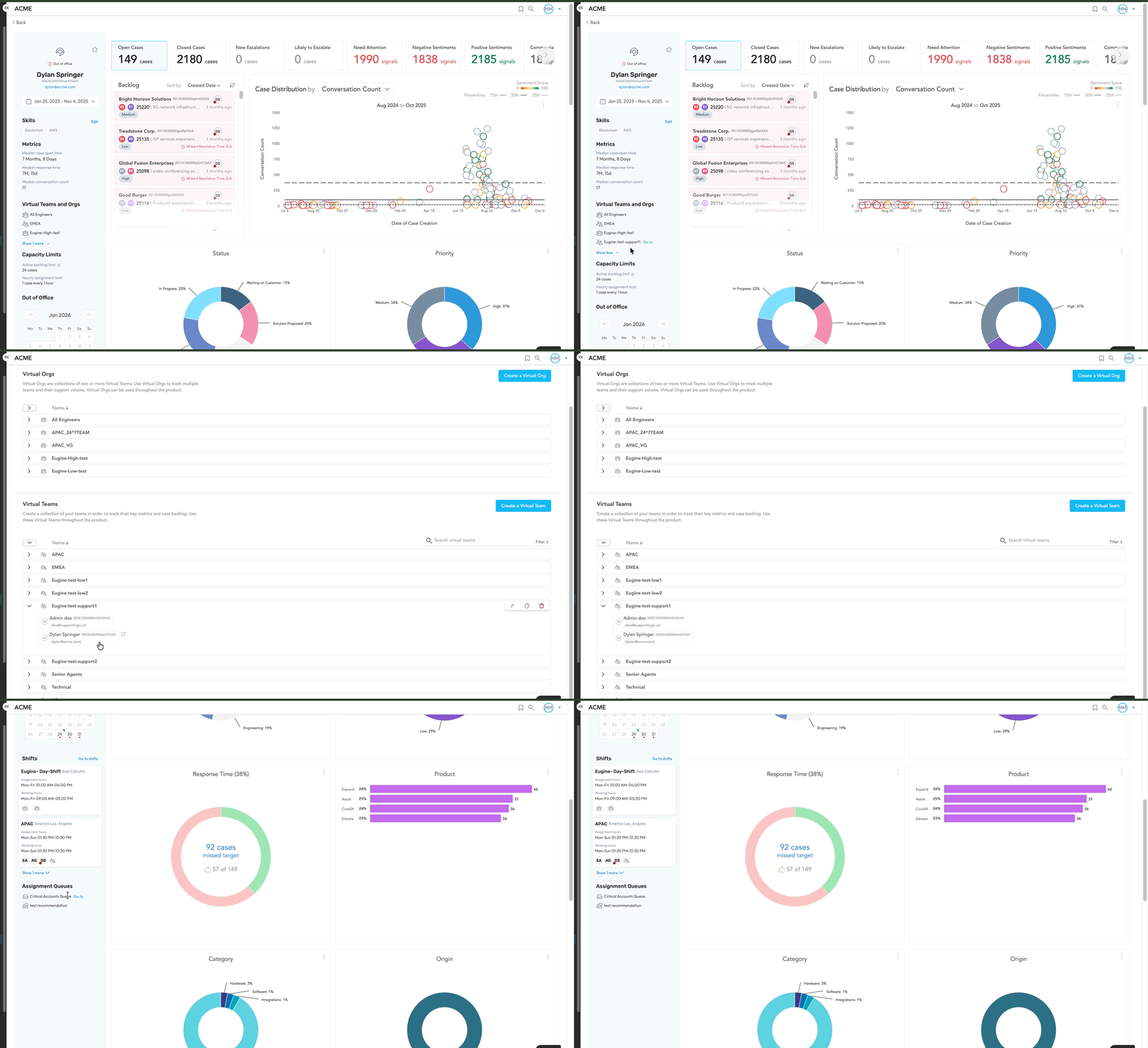
Note : This will be very useful while removing an inactive user from the virtual queue, virtual team/ orgs since inactive user might prevent the case assignment.
Was this article helpful?
That’s Great!
Thank you for your feedback
Sorry! We couldn't be helpful
Thank you for your feedback
Feedback sent
We appreciate your effort and will try to fix the article