| Prerequisites: 1. Ensure you have System Administrator access to the client's Salesforce environment. 2. Confirm that the environment is on a supported Salesforce version (Salesforce lightning LWC API Version 60.0 above). 3. Remove dependencies of the older package by viewing the package dependencies. 4. Uninstall the older version if it exists (e.g. 2.7 package). 5. Obtain the installation URL for the latest version. a. Portal latest version and iFrame latest version are as of November 21, 2025, is V2.8 package installation URL:https://login.salesforce.com/packaging/installPackage.apexp?p0=04tIS000000U2V2 Step-by-Step Installation Process
|
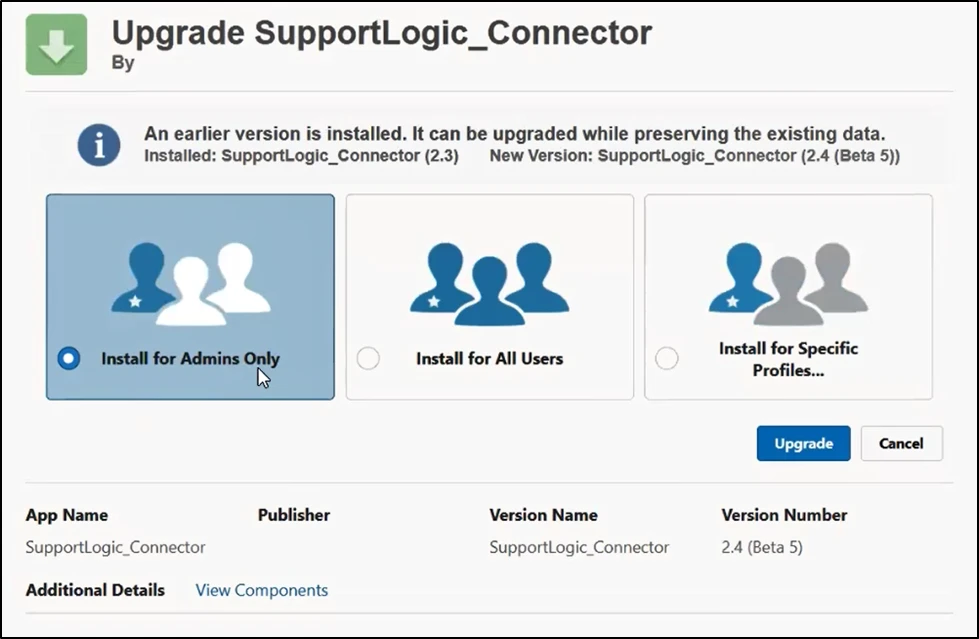
Note: This selection cannot be changed after installation. To modify it, the customer must uninstall and reinstall the package.
4. Start Installation:
- Click Install (or Upgrade if the previous version was installed) and wait for the process to complete.
- If the installation takes longer than expected, Salesforce may send an email notification upon completion.
- If the pop-up below is shown, check the “Yes” checkbox and grant permission (usually only for SSL environments).
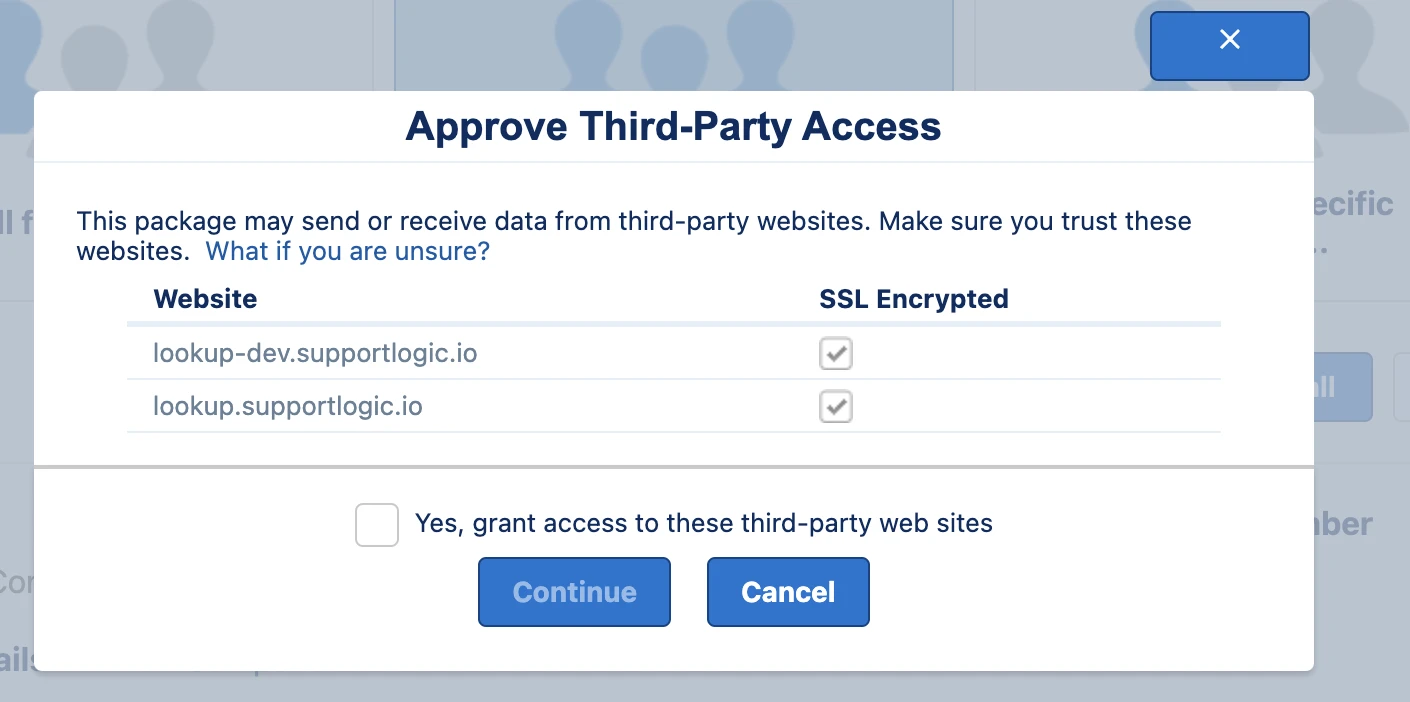
4. On selecting the “Yes” checkbox above and clicking on “Continue”, the installation will begin.
5. Upon completion, the next message will be shown: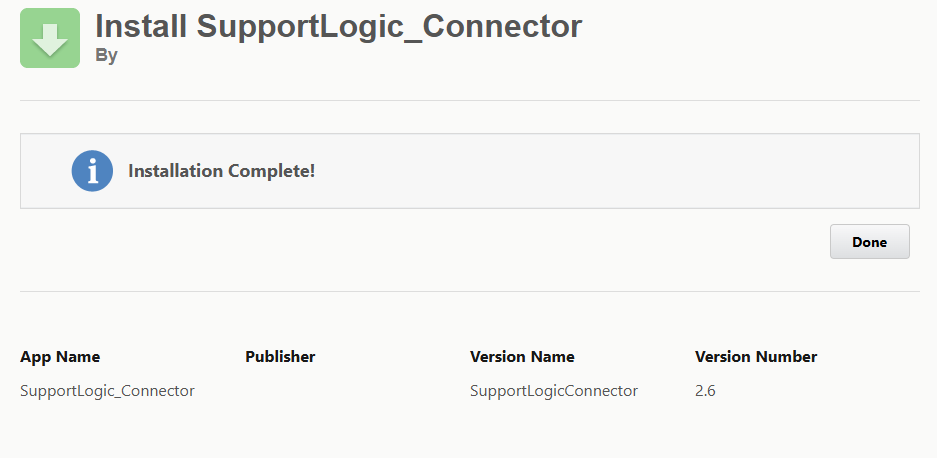 5.Verify Installation:
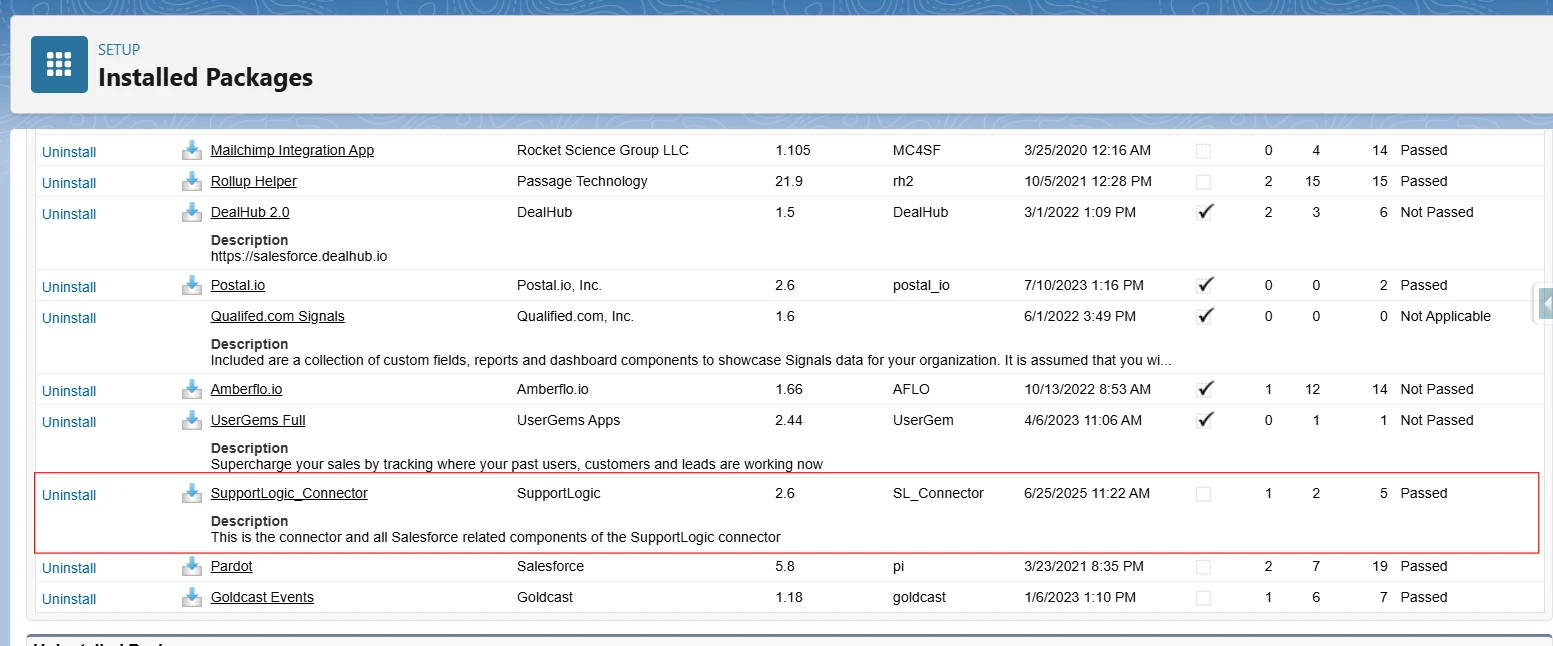
- Click on the “Done” button on the screen above or navigate to Setup > Installed Packages to confirm that the package appears in the list as shown below.
- Check the package version to ensure it's correctly installed.
Was this article helpful?
That’s Great!
Thank you for your feedback
Sorry! We couldn't be helpful
Thank you for your feedback
Feedback sent
We appreciate your effort and will try to fix the article