Introduction:SupportHub provides visibility into voice interactions by displaying call transcripts and AI-driven sentiment analysis directly within the case view. This enables teams to review conversations, understand customer and agent tone, and quickly identify calls that may require follow-up or coaching. Prerequisites:To view voice transcripts and sentiments:
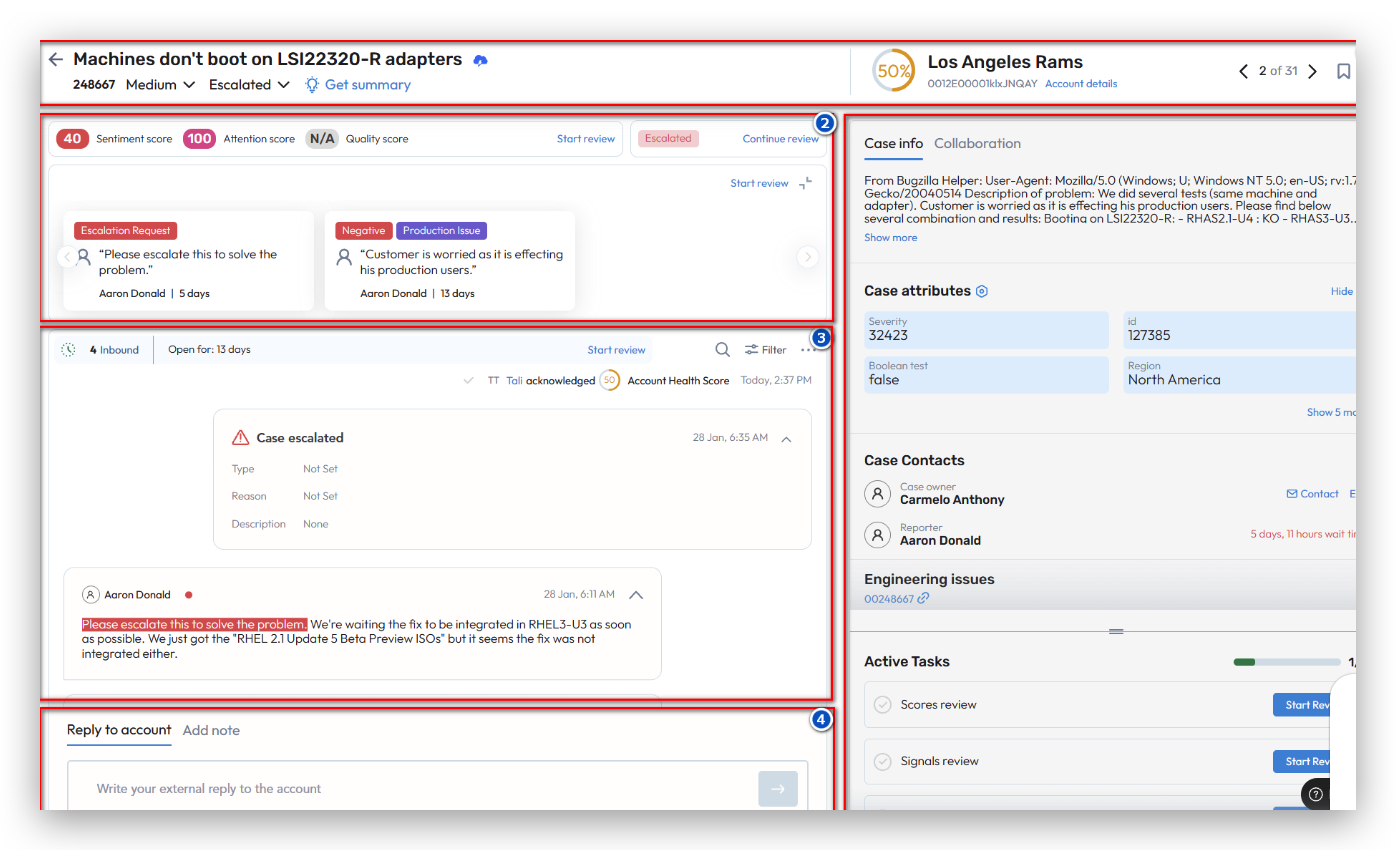
Accessing Voice Transcripts and Sentiment:Sign in to SupportHub and use the Search bar to locate the case by ticket ID or case number. Open the case from the search results to access the case details view. In the case details, navigate to the Timeline or Interactions section and locate entries labelled as Voice or Call, or those identified with a phone icon. Select the relevant voice interaction to open it. The call transcript is displayed in chronological order, typically tagged by speaker (e.g., Customer, Agent). You can scroll through the transcript to review the full conversation. If audio playback is enabled, you may also play the recording and follow along with the transcript. Sentiment insights are available at two levels. At the line level, each transcript segment may display a sentiment label such as Positive, Neutral, or Negative, often accompanied by a visual indicator. At the call or case level, you may see an overall sentiment summary in the case header or a dedicated sentiment widget, providing a quick overview of the interaction tone.
Note: If a voice transcript or sentiment is not visible, confirm that the call exists in your telephony/CCaaS system and is correctly linked to the appropriate case. Also verify with your SupportLogic administrator that voice ingestion and voice sentiment analysis are enabled for your environment. If the issue persists, contact SupportLogic Support and share the SupportHub case ID, source ticket or case ID (e.g., Salesforce, Zendesk, ServiceNow), call ID (if available), and the approximate call date and time including time zone. |
Was this article helpful?
That’s Great!
Thank you for your feedback
Sorry! We couldn't be helpful
Thank you for your feedback
Feedback sent
We appreciate your effort and will try to fix the article