Overview
SupportLogic allows administrators to define which case statuses are treated as closed versus active. This classification directly impacts how cases are counted across the platform, including backlog, metrics, analytics, and summaries.
This article explains how to identify and configure whether a case status belongs to a closed case.
How to Check if a Status Is Marked as Closed
To determine whether a case status is considered closed:
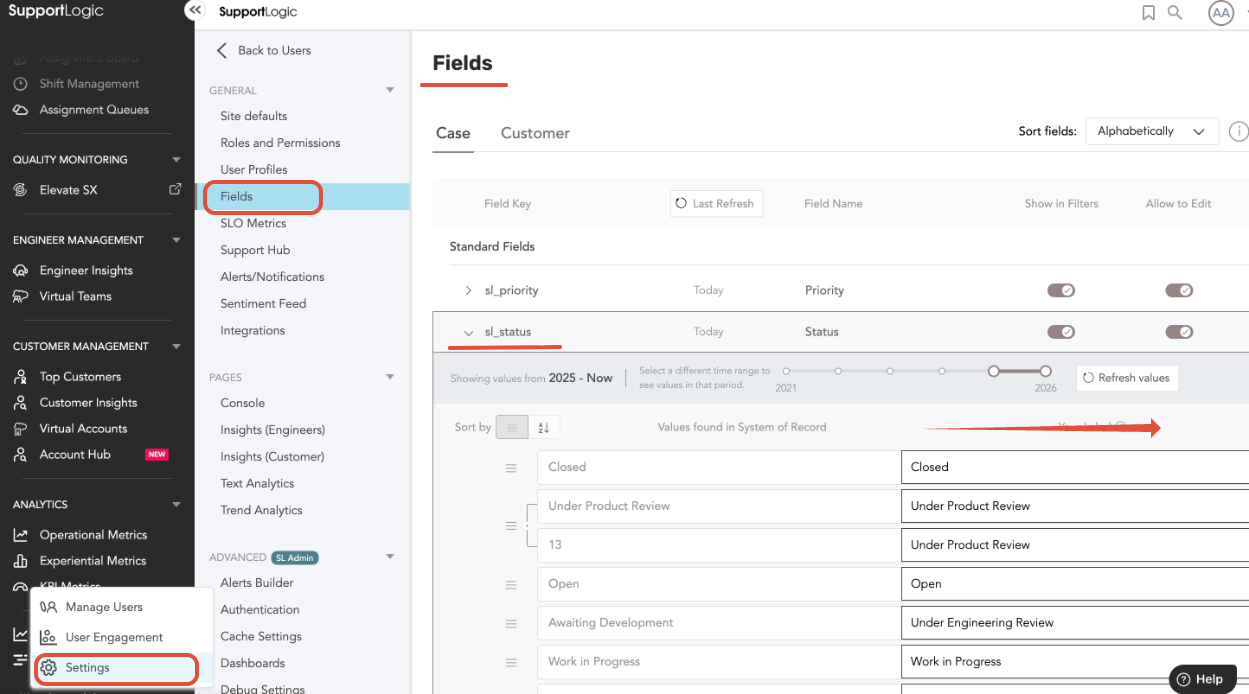
- Navigate to: Control Center → Settings → Fields
- Locate and open the
sl_statusfield. - Review the list of available status values.
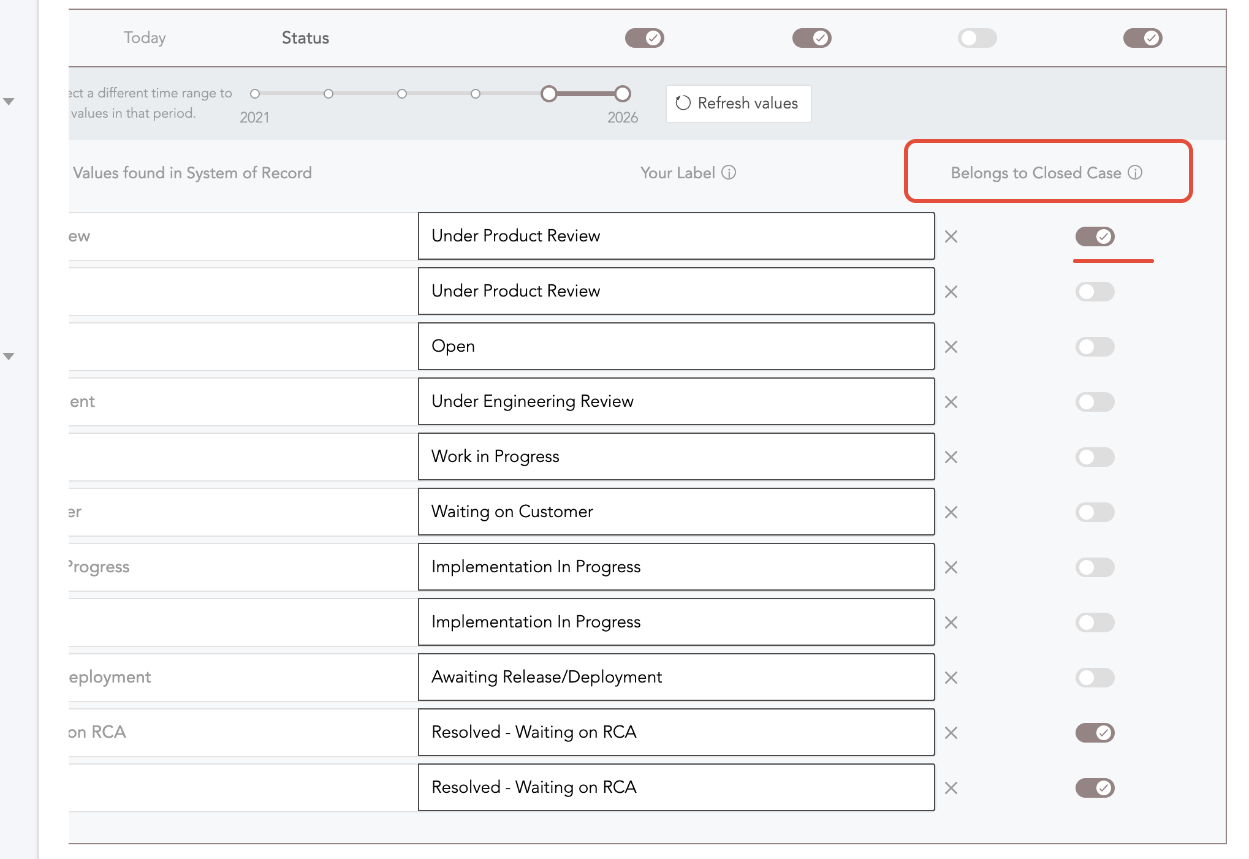
- Scroll to the right side of the table to find the column: “Belongs to Closed Case”
- Check the toggle for each status:
- Enabled → Status is treated as Closed
- Disabled → Status is treated as Active
How This Impacts Backlog and Metrics
The “Belongs to Closed Case” setting determines how cases are counted across SupportLogic:
- Closed Status (Toggle Enabled):
- Excluded from Active Backlog
- Not included in performance metrics
- Treated as closed across analytics, summaries, and dashboards
- Active Status (Toggle Disabled):
- Included in Active Backlog
- Counted in metrics and reporting
- Considered an open case across the platform
Example
If the status “Under Product Review” is marked as Belongs to Closed Case:
- Cases in ““Under Product Review” will be treated as closed in SupportLogic
- These cases will not contribute to backlog calculations
- They will be excluded from performance-related metrics
Common Use Case
This configuration is especially useful when:
- Certain statuses should not count toward agent workload
- Teams want to refine how backlog is calculated
- Custom CRM statuses need to align with SupportLogic reporting logic
Summary
- Case status behavior is controlled in the sl_status field configuration
- The “Belongs to Closed Case” toggle determines whether a status is treated as open or closed
- This setting impacts backlog, metrics, analytics, and overall reporting
If further assistance is needed with configuring case statuses or understanding their impact, please reach out to SupportLogic Support.
Was this article helpful?
That’s Great!
Thank you for your feedback
Sorry! We couldn't be helpful
Thank you for your feedback
Feedback sent
We appreciate your effort and will try to fix the article