Purpose
This article explains how to download a report specifically for current active LTE (Low Time to Escalate) cases using the Operational Metrics page in SupportLogic.
Steps to Download Active LTE Case Report
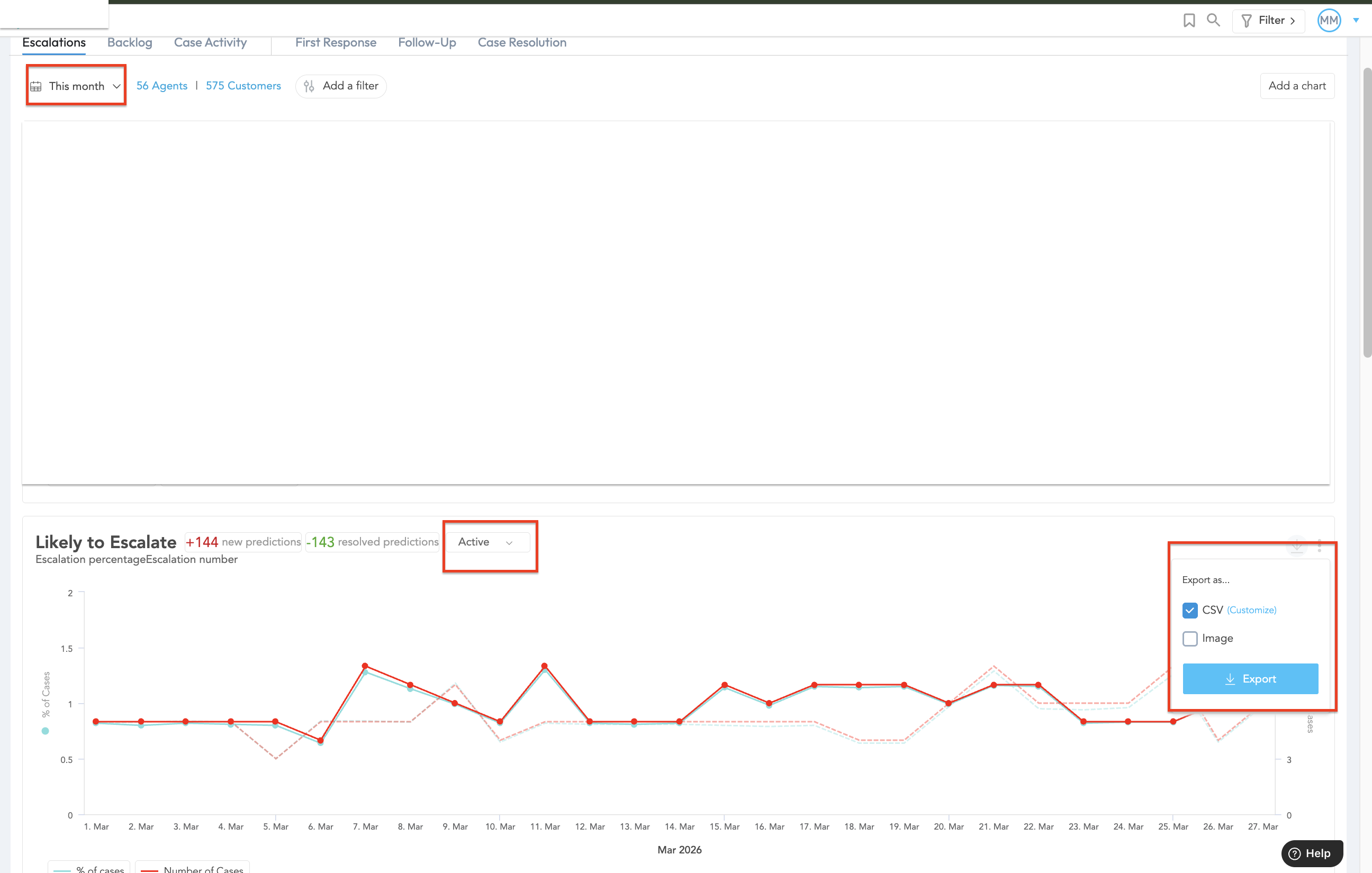
- Navigate to the Operational Metrics page.
- Locate the LTE Trend chart.
- Set the filter to Active to focus on currently active LTE cases.
- Select the required time frame based on your reporting needs.
- Click on the Download option to export the report.
Please refer to the below screenshot.
Understanding the Downloaded Report
Once the report is downloaded, you will see a column named predicted.
predicted = true- Indicates currently active LTE cases
- These are cases that are actively predicted as LTE
predicted = false- Indicates cases that were previously predicted as LTE
- These cases are no longer classified as LTE (status may have changed)
How to Filter Current Active LTE Cases
To focus only on current active LTE cases:
- Open the downloaded report.
- Locate the
predictedcolumn. - Apply a filter:
- Select
trueonly
- Select
This will give you a list of only the current active LTE cases.
Key Notes
- The LTE Trend chart reflects both current and historical predictions.
- Filtering by
predicted = trueensures you are viewing only active LTE cases. - Time frame selection is important to narrow down relevant data.
Was this article helpful?
That’s Great!
Thank you for your feedback
Sorry! We couldn't be helpful
Thank you for your feedback
Feedback sent
We appreciate your effort and will try to fix the article