How to Export Alerts Report in SupportLogic?

Overview

The Alerts Report in SupportLogic provides visibility into alerts triggered based on configured alert rules. This report helps track alert activity and understand how alerts are being generated and distributed across teams.


Steps to Export Alerts Report

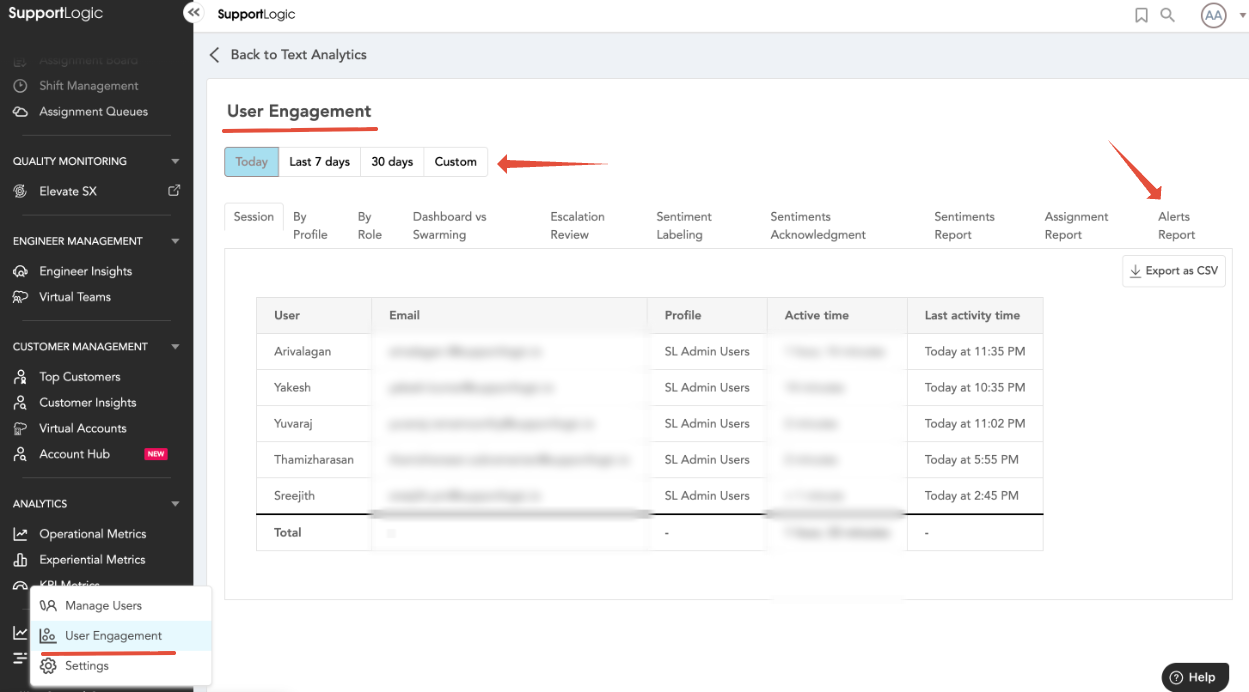
  1. Navigate to: Control Center → User Engagement → Alerts Report
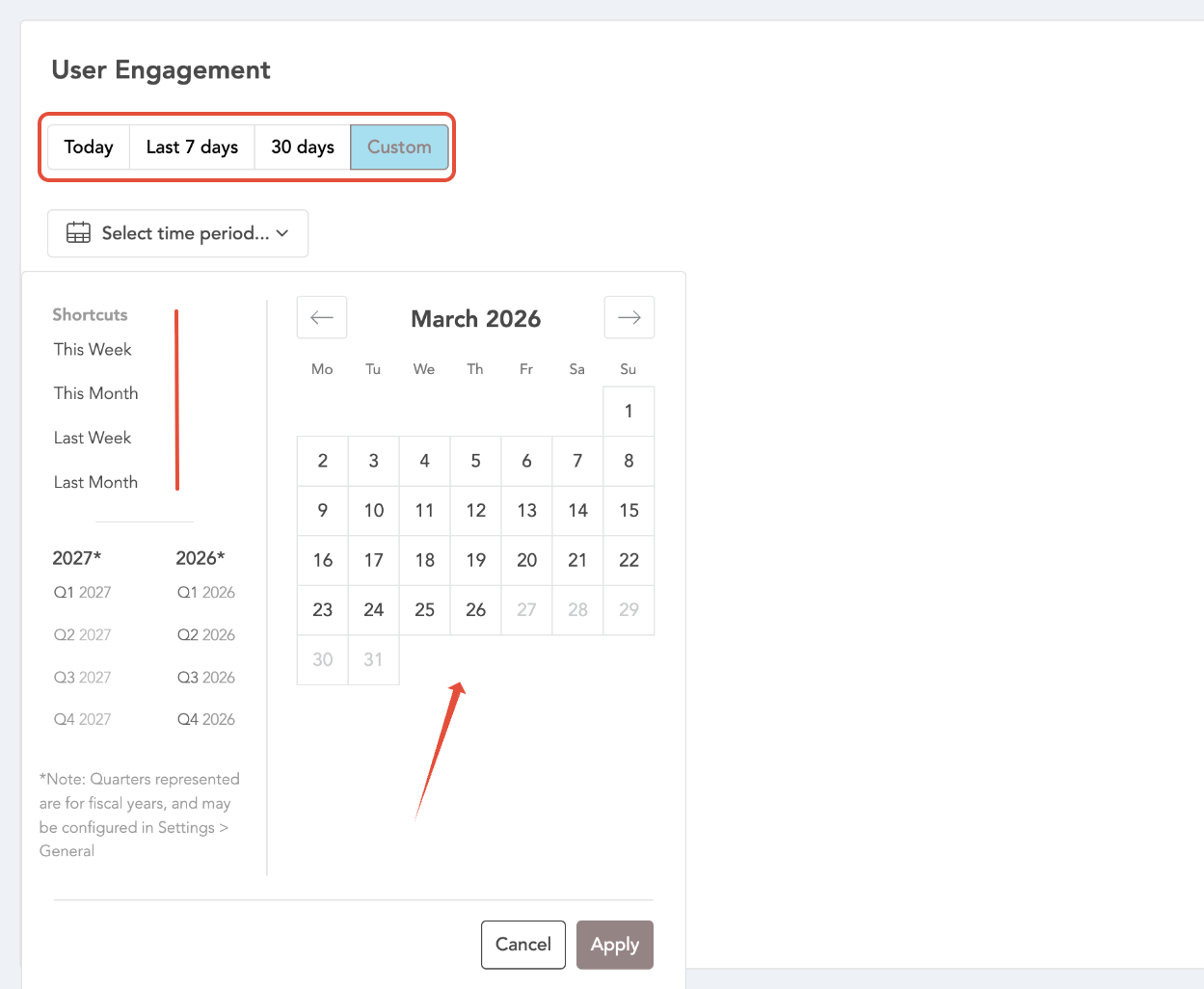
  2. Select the required time range to generate the report.
  3. Review the report directly in the UI.
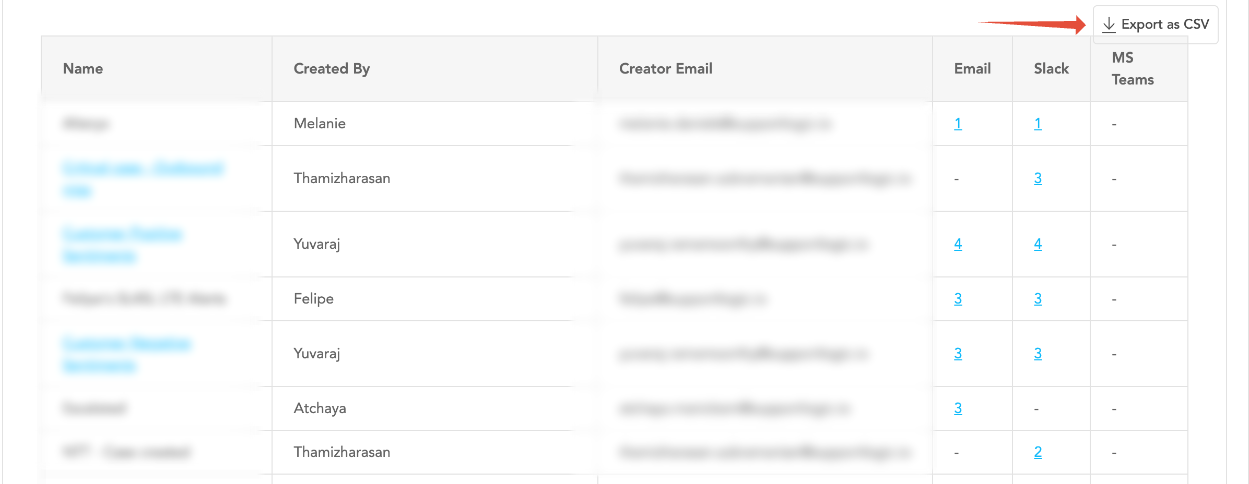
  4. Click on Export to CSV to download the report.


What the Alerts Report Includes

The exported report contains key details such as:

  • Alert Name
  • Alert Owner
  • Owner Email
  • Alert Destination
  • Number of Alerts Triggered


Use Cases

The Alerts Report can be used to:

  • Monitor alert activity and frequency
  • Validate alert configurations
  • Track notification delivery and ownership
  • Analyze trends in alert generation over time


Summary

  • Alerts Report is accessible from the User Engagement section
  • Supports custom time range selection
  • Can be exported as a CSV file
  • Provides detailed insights into alert activity and configuration


If further assistance is needed with alerts or reporting, please contact SupportLogic Support.

Was this article helpful?

That’s Great!

Thank you for your feedback

Sorry! We couldn't be helpful

Thank you for your feedback

Let us know how can we improve this article!

Select at least one of the reasons
CAPTCHA verification is required.

Feedback sent

We appreciate your effort and will try to fix the article