Purpose
This article provides guidance on how to access and re-authorize your Fivetran connector to ensure uninterrupted data synchronization between your CRM and SupportLogic.
Overview
The Fivetran connector is used to sync data from your CRM into SupportLogic. In certain scenarios—such as password updates, credential changes, or connection expiry—you may be required to re-authorize the connector to restore or maintain data syncing.
Accessing the Fivetran Connector
To access your Fivetran connector:
- Users must have appropriate access permissions.
- If access is not available, please contact the SupportLogic Support team to request connector
Best Practice:
We recommend limiting access to 1–2 users only, as changes made within the connector can directly impact data ingestion from your CRM into SupportLogic.
Once access is granted:
- You will receive a connector access link via email
- Use your registered email ID and create new password to log in and access the connector
When to Re-authorize the Connector
You may need to re-authorize the connector in the following cases:
- Connected user credentials have been updated
- The connected user account has changed
- Fivetran prompts for re-authorization due to security or session expiry
Steps to Re-authorize the Fivetran Connector
Follow the steps below to re-authorize your connection:
- Log in to your Fivetran connector using the access link provided
- Navigate to the Destination section
- Search for and select your CRM connector
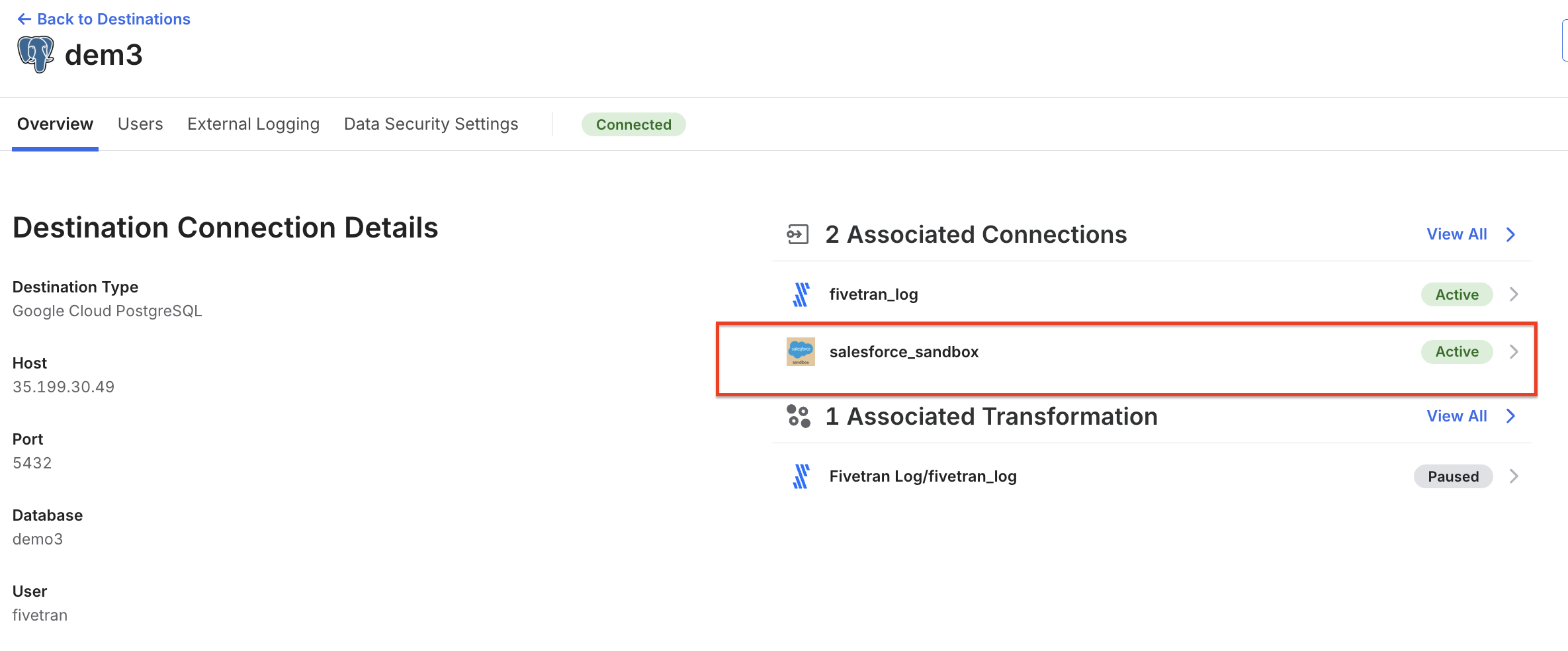
- Click on Setup → Edit Connection
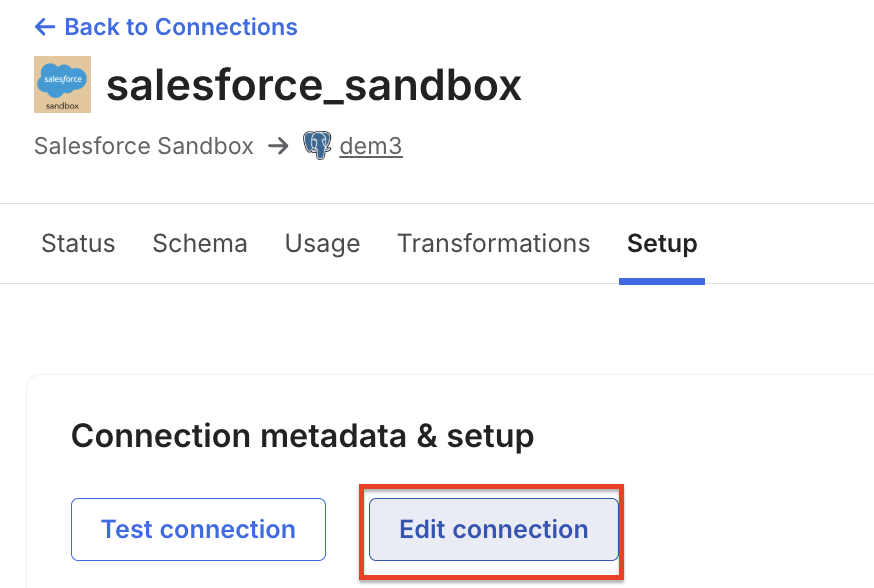
- Locate options such as:
- Edit Credentials or
- Edit Connection
- Click on Re-authorize Connection
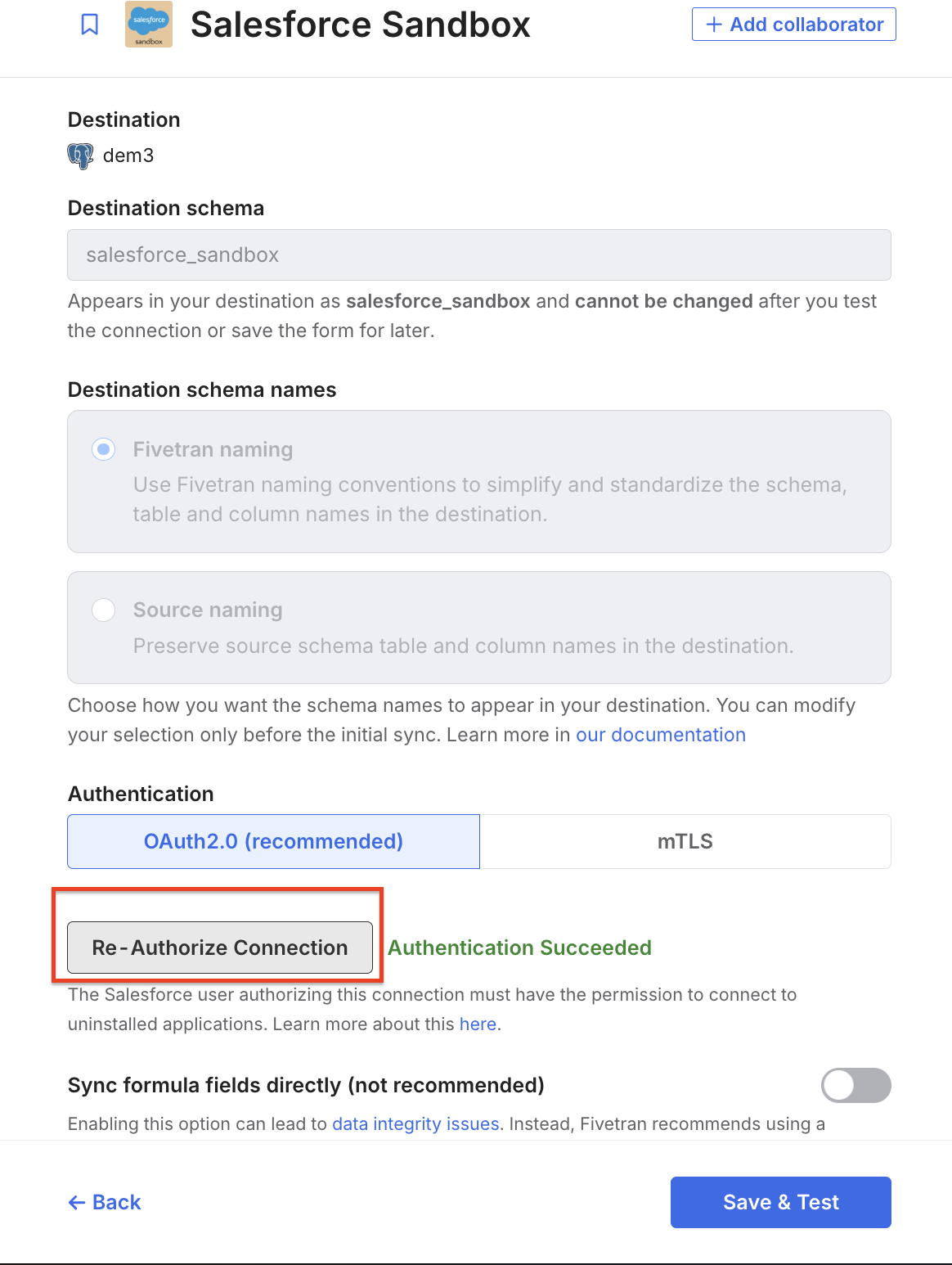
- Enter the updated email address and credentials
- Click Save & Test
- Ensure the connection test is successful
- If required, click Start Sync to resume data sync
Important Notes
- Ensure that the credentials entered are valid and have the necessary permissions in your CRM.
- Any incorrect configuration may interrupt data syncing.
- If issues persist after re-authorization, please reach out to SupportLogic Support for further assistance.
Was this article helpful?
That’s Great!
Thank you for your feedback
Sorry! We couldn't be helpful
Thank you for your feedback
Feedback sent
We appreciate your effort and will try to fix the article