Purpose
This knowledge base article explains how to authenticate and re-authenticate Salesforce integration users within SupportLogic.
Authentication is required to enable UWF functionality, including:
- Writing comments and updates from the SupportLogic UI back to Salesforce.
- Supporting ICA and other user-based workflow actions.
Authenticate the Salesforce Integration User :
The Salesforce integration user is used by SupportLogic to establish and maintain the connection with Salesforce. It is recommended to use a dedicated service account rather than an individual user account.
Steps
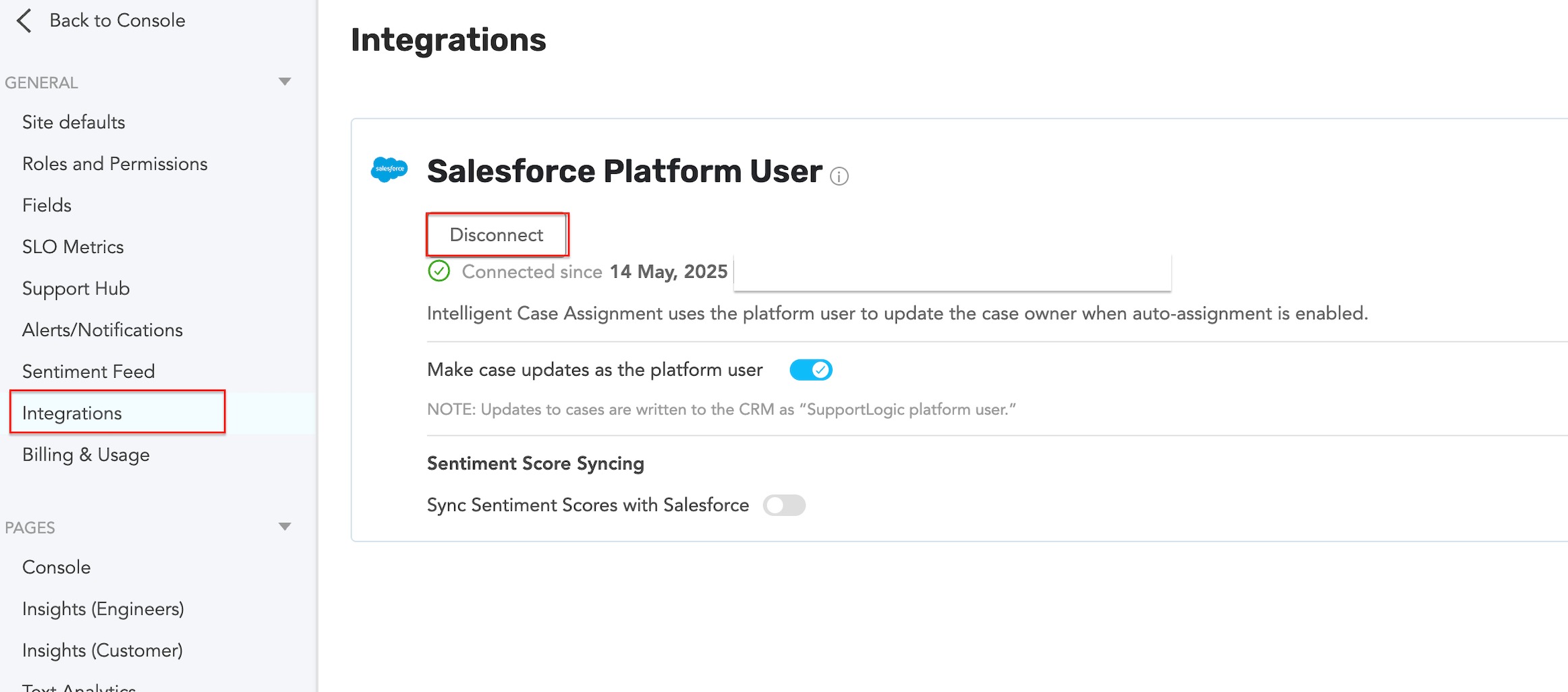
- Navigate to Settings → Integrations.
- Select Salesforce.
- Click Connect.
- You will be redirected to the Salesforce login page.
- Enter the email address and credentials of the Salesforce account that will be used as the integration user.
- Complete the Salesforce authentication process.
- Once authentication is successful, you will be redirected back to SupportLogic.
Validation
After successful authentication, the Salesforce integration page will display a Connected status along with the authenticated Salesforce email address.
Re-authenticate the Integration User
If the authentication token expires or the integration user changes:
- Navigate to Settings → Integrations → Salesforce.
- Click Disconnect.
- Click Connect.
- Re-enter the Salesforce credentials.
- Complete the authentication process.
The updated Salesforce account will then be connected to SupportLogic.
Authenticate Individual Users
Each SupportLogic user must authenticate their Salesforce account to perform writeback actions from SupportLogic.
Steps
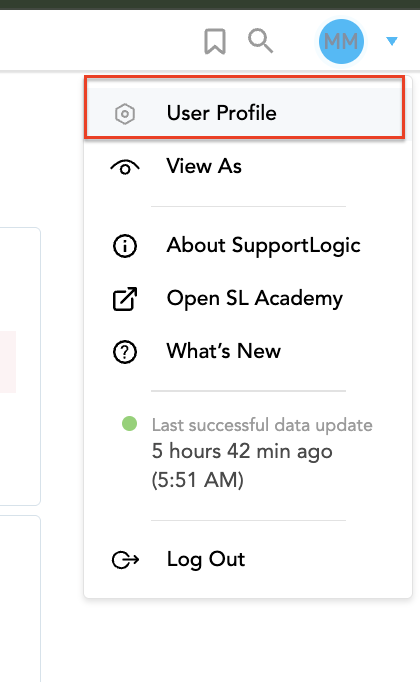
- Click the Profile icon in the top-right corner of SupportLogic.
- Select User Profile.
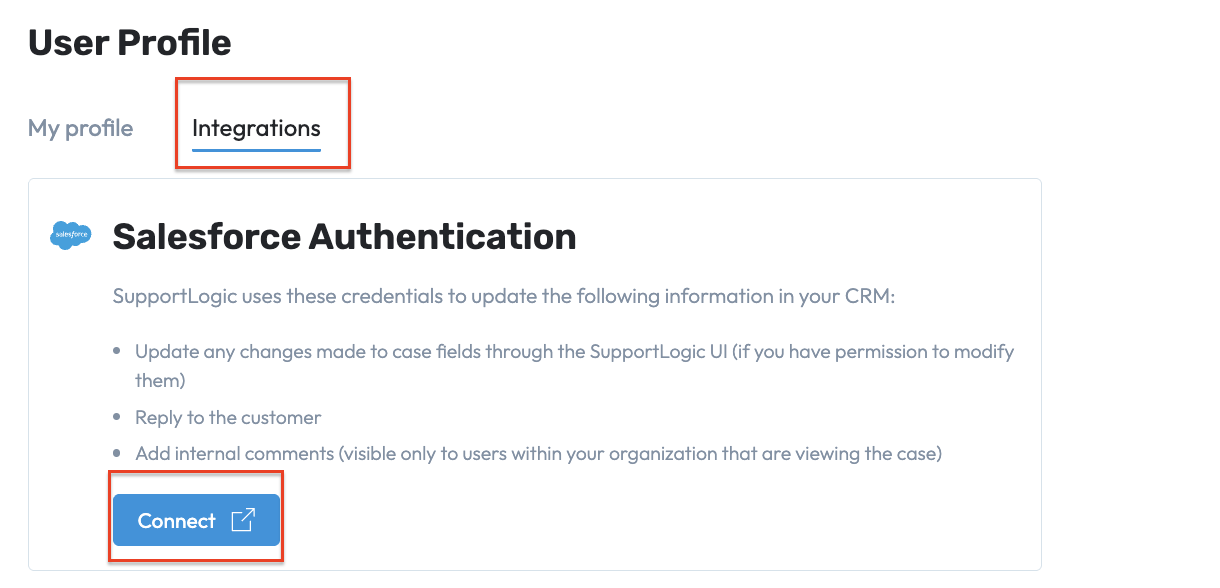
- Navigate to Integrations.
- Under Salesforce Integration, click Connect.
- Enter your Salesforce email address and credentials.
- Complete the Salesforce authentication process.
Screenshot 1:
Screenshot 2:
Validation
Once authenticated, the user's Salesforce account will be connected.
Was this article helpful?
That’s Great!
Thank you for your feedback
Sorry! We couldn't be helpful
Thank you for your feedback
Feedback sent
We appreciate your effort and will try to fix the article