This release brings a redesigned navigation and application theme, SLA tiers with business hours and holidays, a new Alerts library with case timing alerts, and additional MCP tools for Core SX and Elevate SX.
In This Release
- Core SX
- Redesigned Navigation Menu and Application Theme
- SLA Compliance page: SLA tiers and business hours
- Alerts Library and Admin permissions
- New alert conditions for case timing and inactivity
- Multiple CRM and Engineering Tool Links
- MCP new tools for Core SX BETA
- MCP connector settings page BETA
- Email and Microsoft Teams Template Improvements
- Agent Availability from Snowflake
- Elevate SX
New Features and Updates
Core SX
▎ Redesigned Navigation Menu and Application Theme
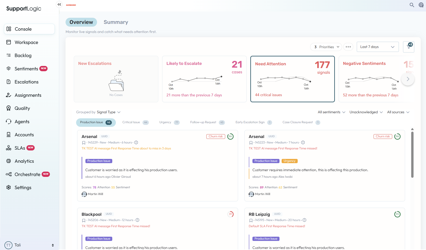
SupportLogic has a refreshed look and a reorganized main menu. Pages are now grouped around your daily support activities, with related boards, analytics and settings together as tabs under each menu item.
- New look and feel
- Updated theme that matches the latest SupportLogic branding, with a pastel gradient navigation menu and a clean white view port
- Cleaner header that now holds global filters and search only
- Unified buttons, icons, drop-downs and fonts, plus a short description under every tab title and new illustrations on welcome and empty pages
- The Log in screen background, email notification header and iFrame widget header now use the new theme colors, so the refreshed look carries across every place you and your team see SupportLogic
- Reorganized navigation
- Pages are grouped into Console, Workspace, Backlog, Sentiments, Escalations, Assignment, Quality, Agents, Accounts, SLAs, Analytics, Orchestrate and Settings.
- Three new menu items bring related content together: SLAs (response time charts and SLO settings, now with account tiers, business hours and holidays), Sentiments (experiential metrics and SLO settings) and Orchestrate (Alerts)
- New Board tabs on Agents and Accounts let managers rank and sort by key metrics. Virtual Teams and Virtual Accounts are now tabs under these pages
- Full navigation map. Tabs in bold moved here from other pages (the previous main menu, Operational Metrics, Experiential Metrics, Control center or Settings). SLO tabs hold settings that used to live in the Settings area.
| Menu item | Tabs |
|---|---|
| Console | Overview, Summary |
| Workspace | My Cases, My Agents, My Accounts |
| Backlog | Board, Analytics, Activity, SLO |
| Sentiments(NEW) | Signals, Analytics, SLO |
| Escalations | Board, Report, Analytics, SLO |
| Assignment | Board, Shifts, Queues |
| Quality | Auto QA, Manual QA, Scorecards |
| Agents | Board NEW, Virtual teams, Virtual organizations |
| Accounts | Board, Virtual accounts, Virtual groups |
| SLAs(NEW) | First Response, Follow Up Response, Resolution, SLO |
| Analytics | KPIs, Topics, Trends, Engagement, Data Cloud NEW |
| Orchestrate(NEW) | Alerts |
| Settings | Site defaults and other admin settings, Manage users |
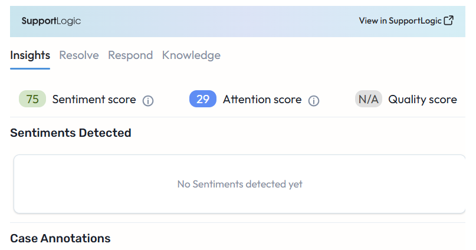 Case iFrame widget | 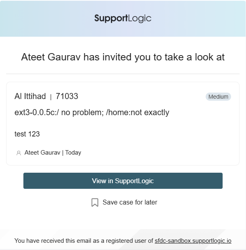 Email notification |
▎ SLA Compliance page: SLA tiers and business hours
- SLA settings are no longer a single global definition. Customers can now set different service levels for different accounts, run SLAs on real business schedules, and track everything from one dedicated page.
- Enterprise support teams sell different commitments to strategic customers, premium contracts, and regional segments, and one blanket SLA could not reflect that.
- SLA timers used to run around the clock, flagging breaches that happened while teams were off by design, so compliance numbers did not match actual contracts.
- SLA tiers, business hours, and holidays close both gaps, so alerts and reports point to genuine risk instead of noise.
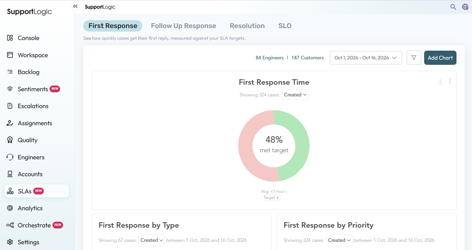
▎ SLA Compliance page
- SLA monitoring - track First Response, Follow-up Response, and Resolution Time side by side, sliced by case fields to spot trends across accounts and teams
- SLO settings- configure tiers, targets, schedules, and automated responses from the same page used to track them
- The SLO settings page is visible to all users, but only users with the “Settings” permission enabled can edit the SLO configurations.
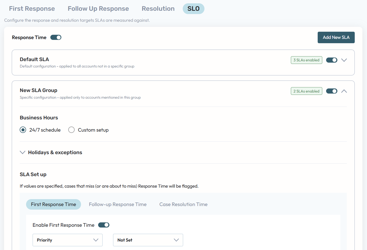
▎ SLA tiers
- Default tier - "All accounts" applies one blanket SLA configuration to every customer out of the box
- Specific tiers – click "Add new SLA" button to add a new SLA tier and search for and add one or more Accounts, Virtual Accounts, or Virtual Groups, then define SLA targets unique to that selection
- SLA targets per tier - First Response Time, Follow-up Response Time, and Resolution Time are set independently for each tier
- Unlimited tiers, one tier per account - create as many tiers as needed; each account can belong to only one tier to prevent conflicting targets
▎ Business hours and holidays per SLA tier
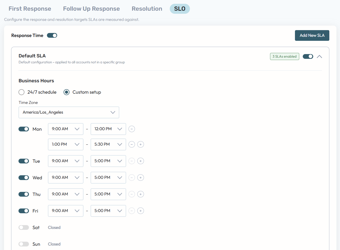
- Each SLA tier can now run on its own working schedule, so SLA timers pause outside business hours and resume automatically when business hours begin again.
- Set weekly hours per day with multiple intervals, mark any day as Closed, and choose a required time zone. A 24/7 toggle is available when round-the-clock coverage applies.
- Add one-time holidays, annual recurring holidays, and day-specific overrides such as half-days (for example, Black Friday 9:00 AM to 1:00 PM).
- Import public holidays for the US, UK, India, and Australia in one click, and remove any individual holiday with Delete.
 Business hours | 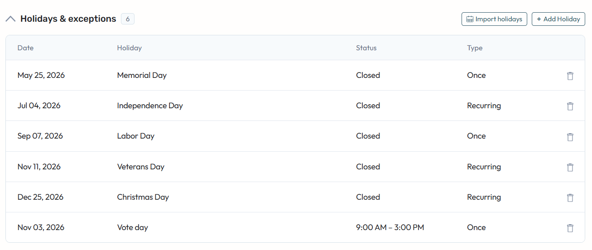 Holidays |
▎ Automated SLA Response
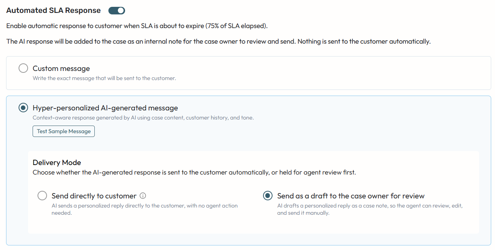
- Customers can now keep their own customers informed automatically when a First Response SLA is about to expire.
- The message is triggered at a configurable percentage of SLA elapsed and is written back as a Reply to Customer comment in the case timeline.
- Custom message lets teams write their own template using variables: [Case ID], [Reporter Name], [Case Subject], and [Company].
- Hyper-personalized message uses GenAI to write the reply from case content, customer history, sentiment, and a selected tone, and every AI-generated message is clearly labeled as AI-generated.
- “Test Sample Message” lets you pick a case and preview the message the AI agent would prepare, so you can validate the look and feel before enabling it for customers.
- Delivery Mode lets you choose how the AI-generated response is handled:
- Send directly to customer - delivers the message straight to the customer.
- Send as a draft to the case owner for review - keeps the human in the loop and sends the draft to the agent for review first. With human in the loop, the draft is added as a case note so the agent can review, edit, and send it manually. The agent also gets an email notification that the message is ready for review.
▎ Follow-up Response Time: independent field selections
- Follow-up Response Time now has its own field selections instead of depending on the First Response SLA setup.
- Teams can define what counts as a follow-up response separately from a first response.
- Changes to First Response settings no longer affect Follow-up tracking.
- Follow-up compliance is more accurate for workflows with different response patterns
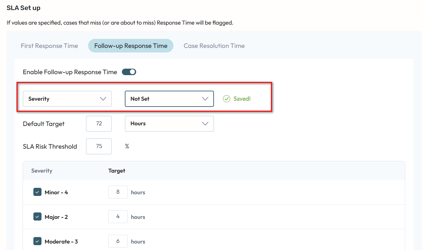
▎ SLA alerts by SLA type and tier
- Alerts no longer rely on a single global SLA definition and can now target specific SLA types and SLA tiers.
- Separate alerts can be created for First Response Time, Follow-up Response Time, and Resolution Time.
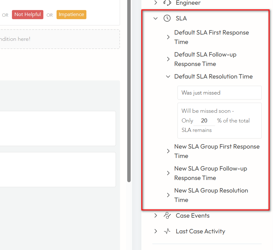
- Every tier created, such as Default or Premium, is available in the alert configuration (for example, "Premium SLA First Response Time").
- Each alert supports two conditions: SLA was just missed, or SLA will be missed soon (X% of the SLA remaining).
- When an alert definition includes a time-based condition, all conditions in that alert are combined with AND logic, so the alert fires only when every condition is met.
- Percentage conditions accept whole numbers (integers) only, for example 80% rather than 80.5%, which keeps thresholds consistent and easy to read.
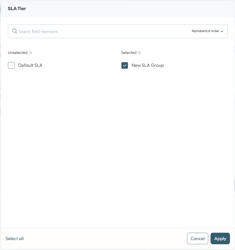
▎ SLA tier and type filters and visibility
- SLA tier and SLA type context now follows users across the application.
- Global and dynamic filters include SLA tiers and SLA types, so any page can be narrowed to a specific tier or SLA type.
- Account Hub shows the account's SLA tier under the More info tab.
- Case cards across the application display the SLA tier, so agents see each customer's commitment at a glance.
 Filters | 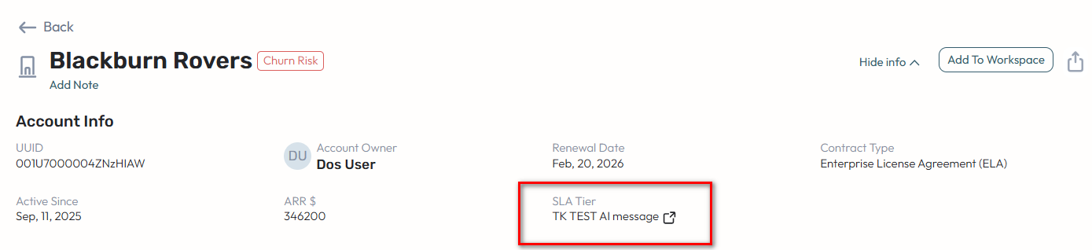 Account Hub | 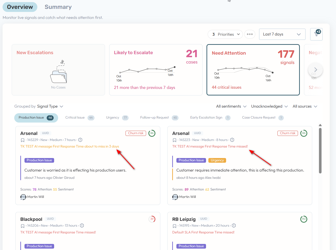 Case cards |
▎ Alerts Library and Admin permissions
▎ Alerts library: one place to see and manage every alert
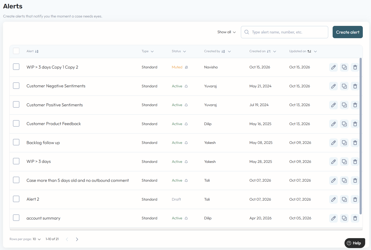
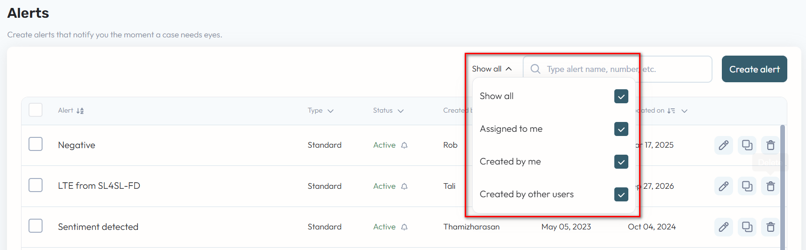
Alerts now have a dedicated library page where you can see all your alerts in a single table and manage them without opening each one.
- The table shows alert name, type (Standard or Keyword), status, creator, creation date, and last run date with run status.
- Every alert has a status of Draft (conditions, recipients or a notification method are missing), Active (fully configured and running), or Muted (fully configured but turned off by the user).
- All existing customer alerts appear in the library automatically.
▎ Find alerts fast with search, sort and filters
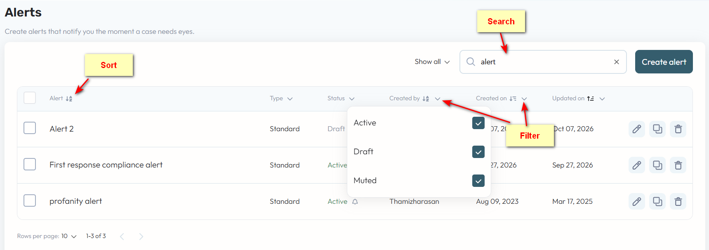
Locate the alert you need in seconds, even in a large library.
- Search by alert name, with a "recently searched" list in the search field.
- Sort by alert name, creator name, or creation date.
- Filter by type, status, creator name, or creation date (last day, last week, last 30 days).
▎ Manage alerts directly from the table
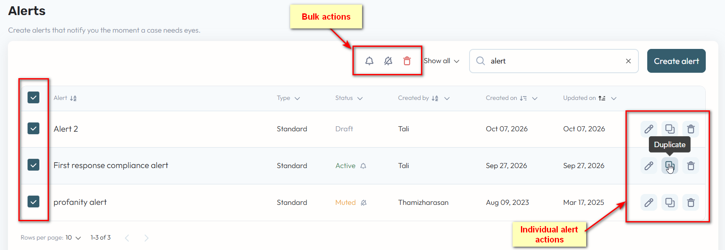
Edit, mute, duplicate and delete alerts straight from the library, one at a time or in bulk.
- Click an alert row or the Edit button to open it, use the bell icon in the Status column to mute or activate it, and use the duplicate and delete icons at the end of the row.
- Select multiple alerts to mute or delete them in one action.
- Confirmation messages appear before any action takes place.
▎ New alert permissions and a "Show all" filter
Three new role permissions give you finer control over who can create, share and administer alerts.
- Create Alerts: create alerts, and edit and delete the ones you created. Compatible with legacy personal alerts.
- Add Recipients: add recipients to your own alerts and to alerts assigned to you. Compatible with legacy shared alerts.
- Manage Alerts (new admin level): see, edit and delete every alert, including alerts created by other users.
The new "Show all" dropdown, controlled by role permissions, filters the library by Assigned to me, Created by me, and Created by other users. Users without permissions don't see the dropdown and see only alerts they were added to as recipients, which they can't edit or delete. Users with Create Alerts see Assigned to me and Created by me. Users with Manage Alerts see all options.
Note: The new permissions map automatically to the legacy personal and shared alert permissions, and users are migrated seamlessly with no action required.
▎ Streamlined alert creation and full page view
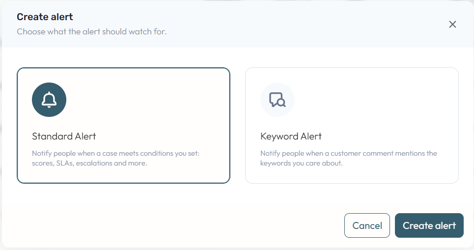
Creating an alert is now a two-step flow, and the full alert page is cleaner.
- Click Create Alert, choose alert type, then click Create alert to open the full view page. Standard alerts use conditions such as sentiment, scores, escalation predictions and SLAs for case-level alerts. Keyword alerts notify you right away when your keywords appear in customer comments.
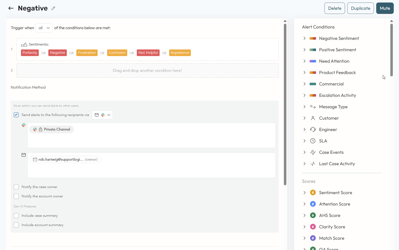
- The left-hand alerts list is removed from the full page, and the remaining two columns expand to use the space. A new back button returns you to the library.
- A user can no longer create two alerts with the same name. Different users can still use the same name. The alert creation experience itself is unchanged.
▎ New alert conditions for case timing and inactivity
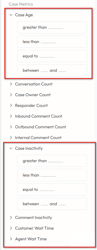
- Alerts can now trigger on five new time-based conditions, so your team can catch aging or stalled cases before they turn into escalations.
- Case Age alerts on cases that stay open longer than the time you set, which surfaces long-running cases early.
- Case Inactivity and Comment Inactivity alerts flag cases with no updates or no new comments for a set period, so quiet cases don't get lost.
- Customer Wait Time and Agent Wait Time alerts show who is holding up the conversation. Managers can follow up when a customer waits too long for a reply, or when a case is waiting on the agent.
 New alert conditions | 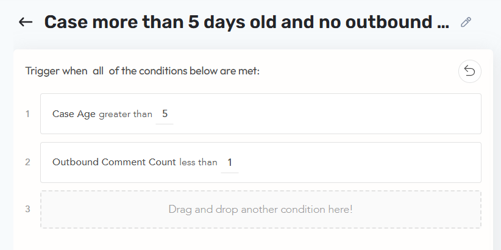 Conditions applied |
▎ Multiple CRM and Engineering Tool Links
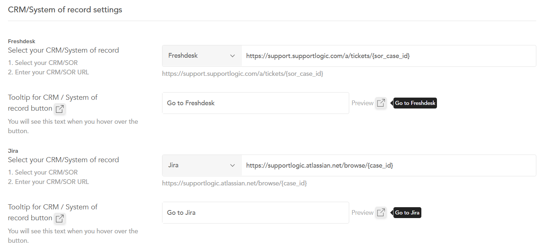
- Open every case and engineering ticket in the right system, even when your organization works across several CRMs and engineering tools.
- Multiple CRM links: When cases are ingested from more than one CRM, admins can configure a separate link for each one in SupportLogic. Users then see the correct link for each case and open it directly in the right CRM instance.
- Consistent everywhere: CRM links work the same way in every place they appear, including the SupportLogic UI, emails, Slack messages, and Microsoft Teams messages.
- Multiple engineering tools: Customers can connect more than one engineering tool to their tickets. Links from cases to linked engineering issues open in the correct tool, so users always land in the right place.
▎ MCP new tools for Core SX BETA
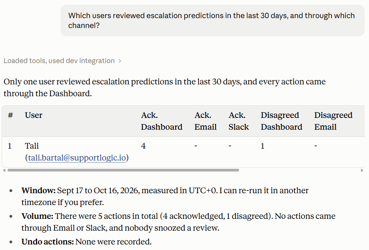
- User Engagement tool: 4 new reports were added:
- Escalation Review (who reviewed predictions, action taken, channel),
- Sentiment Labeling (who labeled signals, how many),
- Sentiments Report (daily signals extracted vs. acknowledged),
- Assignment Report (who assigns cases manually, how many).
- Team performance benchmark. Managers get contextual 30-day benchmarks for their virtual team or org, led by the most significant change in the last 7 days. Includes tables and charts for resolution time, assignments, missed SLAs, negative signals, escalations, and QA scores, then suggests a deeper look at the lowest performer via Agent Insights.
- More case data. Query unassigned cases, fetch any comment’s author name, and view coaching notes for Core SX.
- Data security scope. MCP replies now respect each user’s visibility limits, including excluded products, regions and other case related field members.
- New tool: Get Virtual Queues. Query existing virtual assignment queues and their definitions, rules, and settings.
 User engagement - escalation review report | 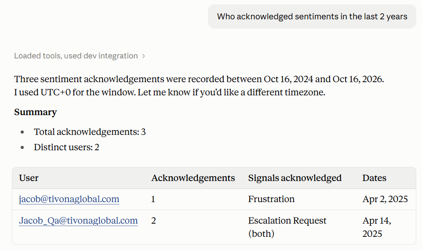 User engagement - signals acknowledgement |
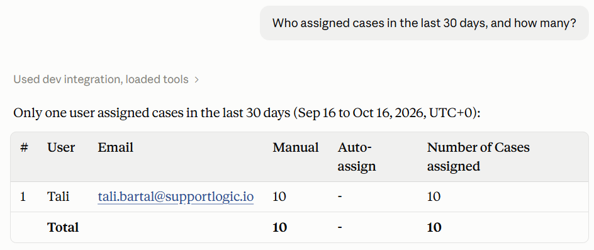 User engagement - assignment report | 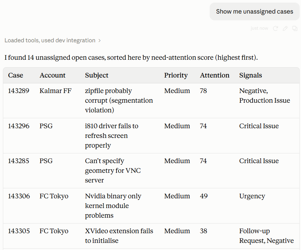 Unassigned cases |
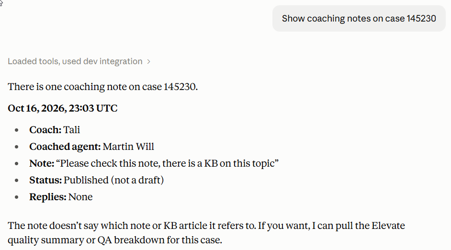 Coaching notes on the case | 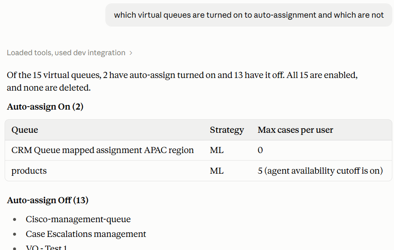 Virtual queues tool |
▎ MCP connector settings page BETA
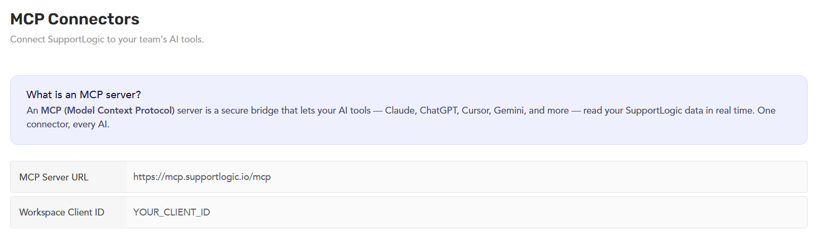
- Admins can now find everything needed to connect an MCP client to SupportLogic in one place, directly in the application settings.
- Copy your MCP Server URL straight from the new MCP Connectors page in Settings.
- After MCP is enabled for your workspace by SupportLogic, copy your Workspace Client ID directly from this page whenever you need it.
- Set up your AI assistant or MCP client connection faster, with the required connection details available to admins whenever they need them.
▎ Email and Microsoft Teams Template Improvements
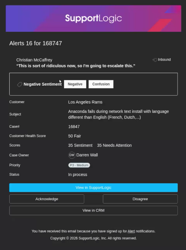
- Email notifications now look consistent across email clients and in the Microsoft Teams integration.
- Unified header: The header is now a single image that displays the same way in every email client, replacing the previous layered background image.
- Cleaner rendering in Teams: Emails sent to Teams used to lose their styling and display poorly. They now render correctly in the Teams client.
- Refined text and image sizing: Image sizes and some text columns have been updated for a more consistent look. The overall email layout is unchanged.
▎ Agent Availability from Snowflake
- SupportLogic can now pull agent availability directly from your Snowflake data, so availability in the platform reflects the source your organization already trusts.
- Use the data you already have. Teams that track agent availability in Snowflake can bring it into SupportLogic without routing it through their CRM.
- One source of truth. Availability stays consistent with your existing systems, so the platform shows who is available and who is away based on your own data.
- Flexible by design. The Snowflake option sits alongside the existing CRM-based approach, so each organization can choose the source that fits its setup.
Elevate SX
▎ Writeback QA scores and CES scores to CRM
- Quality and effort scores now sync directly back to your CRM, so teams can see and act on them where they already work.
- The most recent QA score (either Auto QA or Manual QA) is written back to the case record in your CRM, keeping quality data visible without switching tools.
- Customer Effort Score (CES) syncs back when applicable, giving a fuller view of the customer experience on each case.
- Scores can now feed CRM reports, dashboards, and workflows, making it easier to track quality trends and trigger follow-up actions.
▎ Virtual team filters on Elevate SX pages
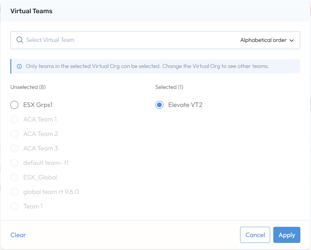
- Elevate SX pages now support filtering by Virtual Team, in addition to the Virtual Organization filter that was already available.
- Filter by an individual Virtual Team, one team at a time, to see data scoped to that team.
- When a Virtual Organization is selected, the Virtual Team filter shows only the teams that belong to that organization, so you can narrow down within it.
- Selecting a Virtual Team instead of a Virtual Organization switches the Dashboard to show Virtual Team level data directly, rather than staying on the default Virtual Organization view.
- The Virtual Teams field is found inside the Dynamic Filter Settings pop up.
▎ MCP new tools for Elevate SX BETA
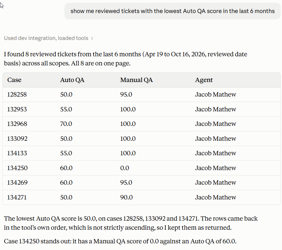
- Four new tools added to query the quality module:
- Search QA Tickets. Find tickets by QA data, combining filters like QA score, CES, CSAT, skill and behavior ratings, and review state. Covers Advanced Search and the Tickets of Interest boards, ten results per page.
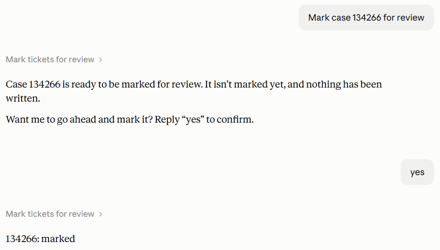
- Mark Tickets for Review. Mark or unmark tickets in bulk, with a preview and confirmation before any change. Syncs with Elevate.
- Get Marked for Review Tickets. List your marks, anyone’s, or one agent’s, or check whether specific cases are marked. Read only.
- Get Team Evaluations. Summarizes reviewer feedback into strengths, recurring problems, and suggestions, with quotes and case IDs. Respects role-based access.
 Search QA Tickets | 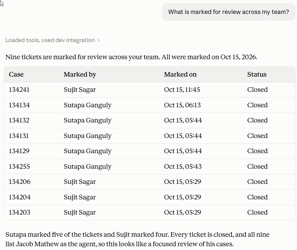 Get Marked for Review Tickets |
 Mark Tickets for Review | 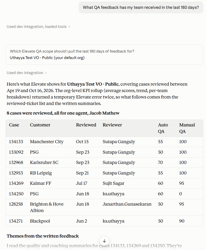 Get Team Evaluations |
Thanks,
The SupportLogic Team
Was this article helpful?
That’s Great!
Thank you for your feedback
Sorry! We couldn't be helpful
Thank you for your feedback
Feedback sent
We appreciate your effort and will try to fix the article